The PSH (Private Sector Housing) module is property based, unlike our other modules which are client or case based. This article will explain how to create new properties and cases in PSH.
TABLE OF CONTENTS
Creating a Property
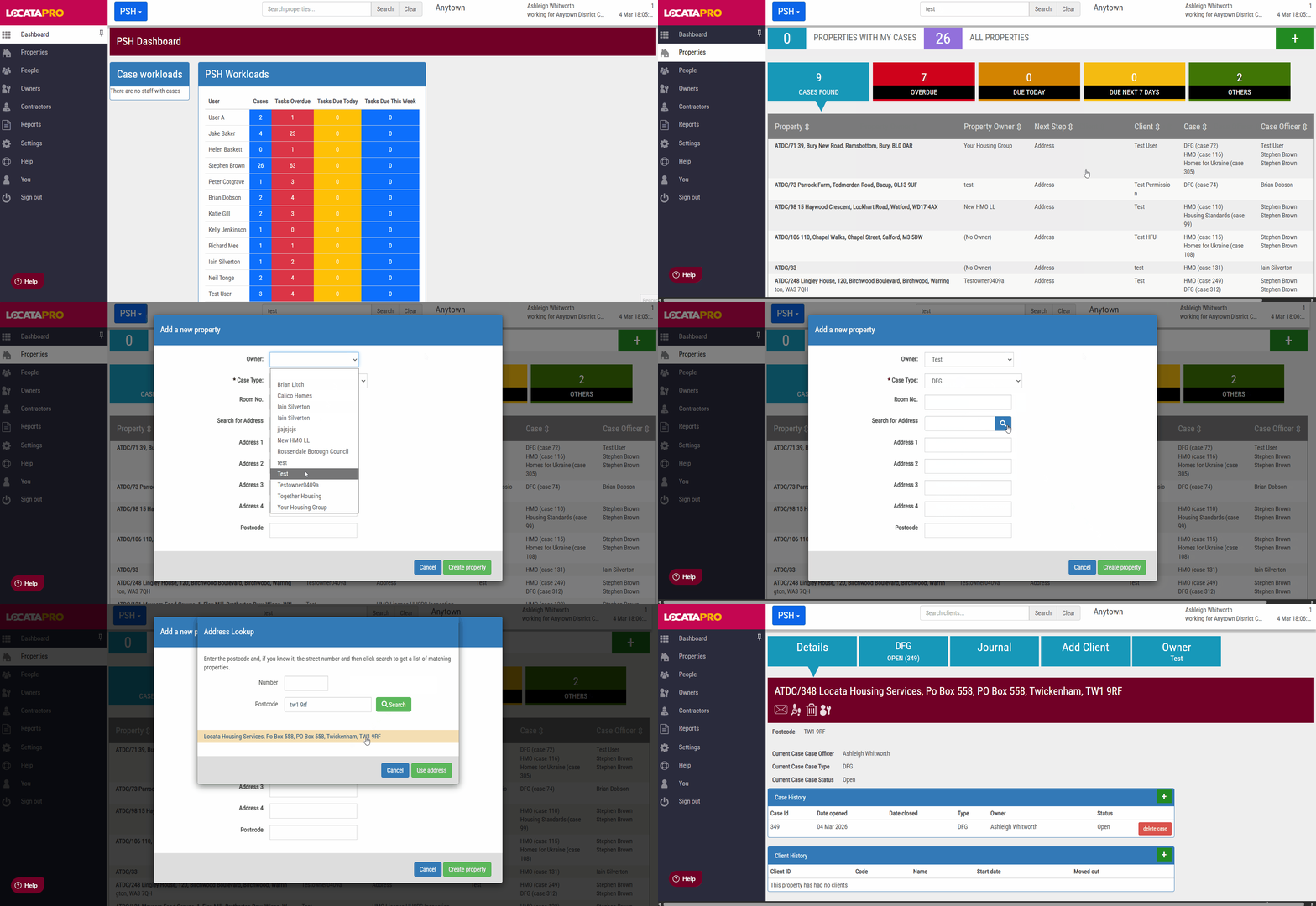
Before a case can be created, you need to create a property. To do this;
- Click on Properties.
- Search for the property to ensure they don't exist already. You can search by
- Street name
- Postcode
- Property owner
- Client name
- Case
- If the property doesn't exist, add the property by clicking the green + icon.
- Select an owner that may already be in the system if they own several properties. If they are a new owner, or you don't have their details, you can add them in later on.
- Add a case type.
- Add the address using the address lookup, select the address and click use address
- Click Create property.
Did you know: Super users can decide how much or how little information is displayed in the summary on the property page under Details.
Adding a property Owner
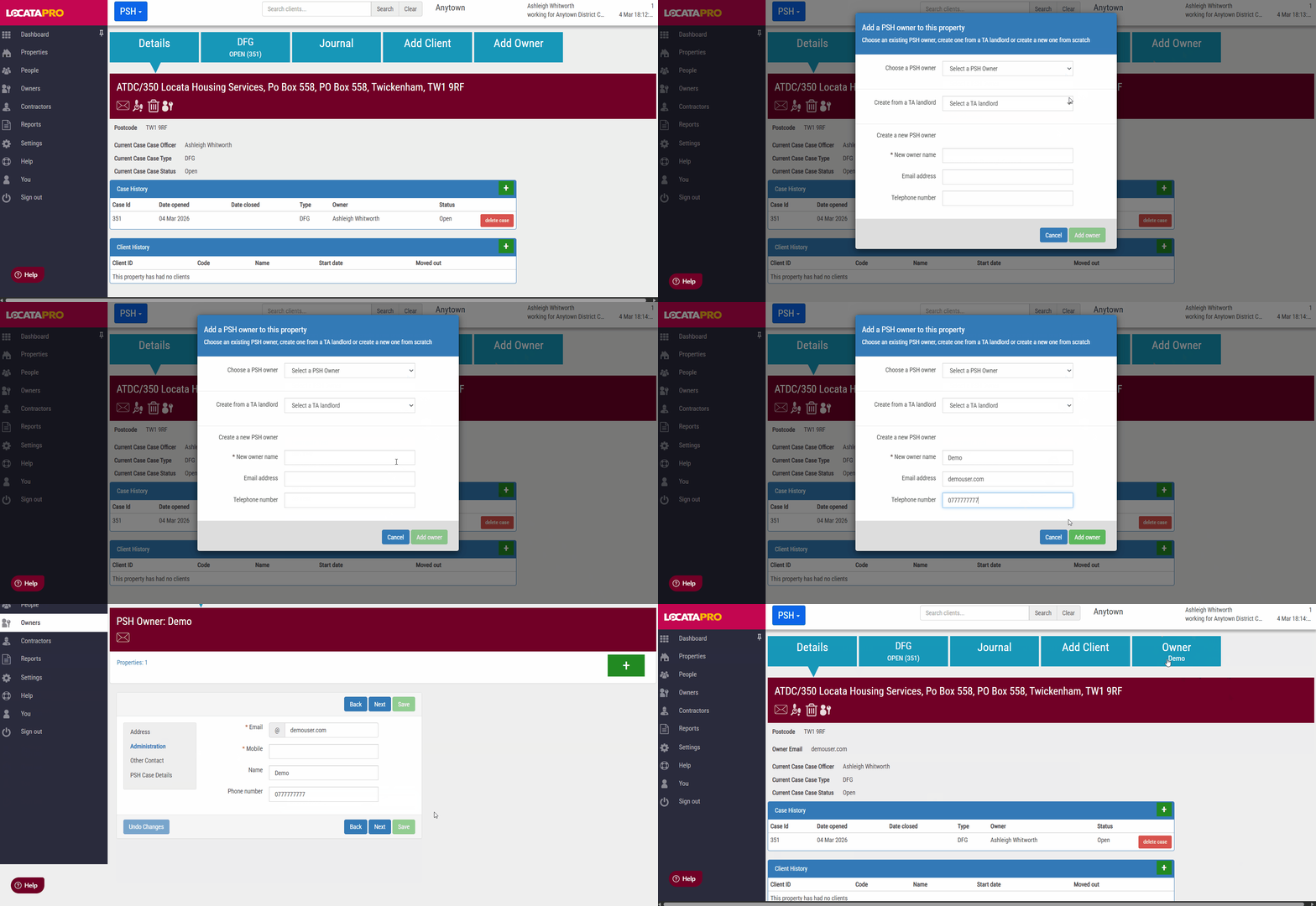
To add an owner of a property:
- Click the Add Owner tab on the property.
- If they're already on the PSH module or are a landlord for Temporary Accommodation on the HPA2 module (Homelessness Prevention and Advice), you can choose them from the PSH owner or TA landlord dropdowns
- If they don't exist on either of the above, you can create them by entering their name and details. Click Add owner.
- The tasks under the details of the owner will show on screen. Super users can add to the number of tasks shown here in task settings.
- Click back to the property by clicking on the Property square.
- The owner's name will now show under Owner.
Info: You can also add and manage property owners from the Owners page on the left hand menu.
Changing a property owner
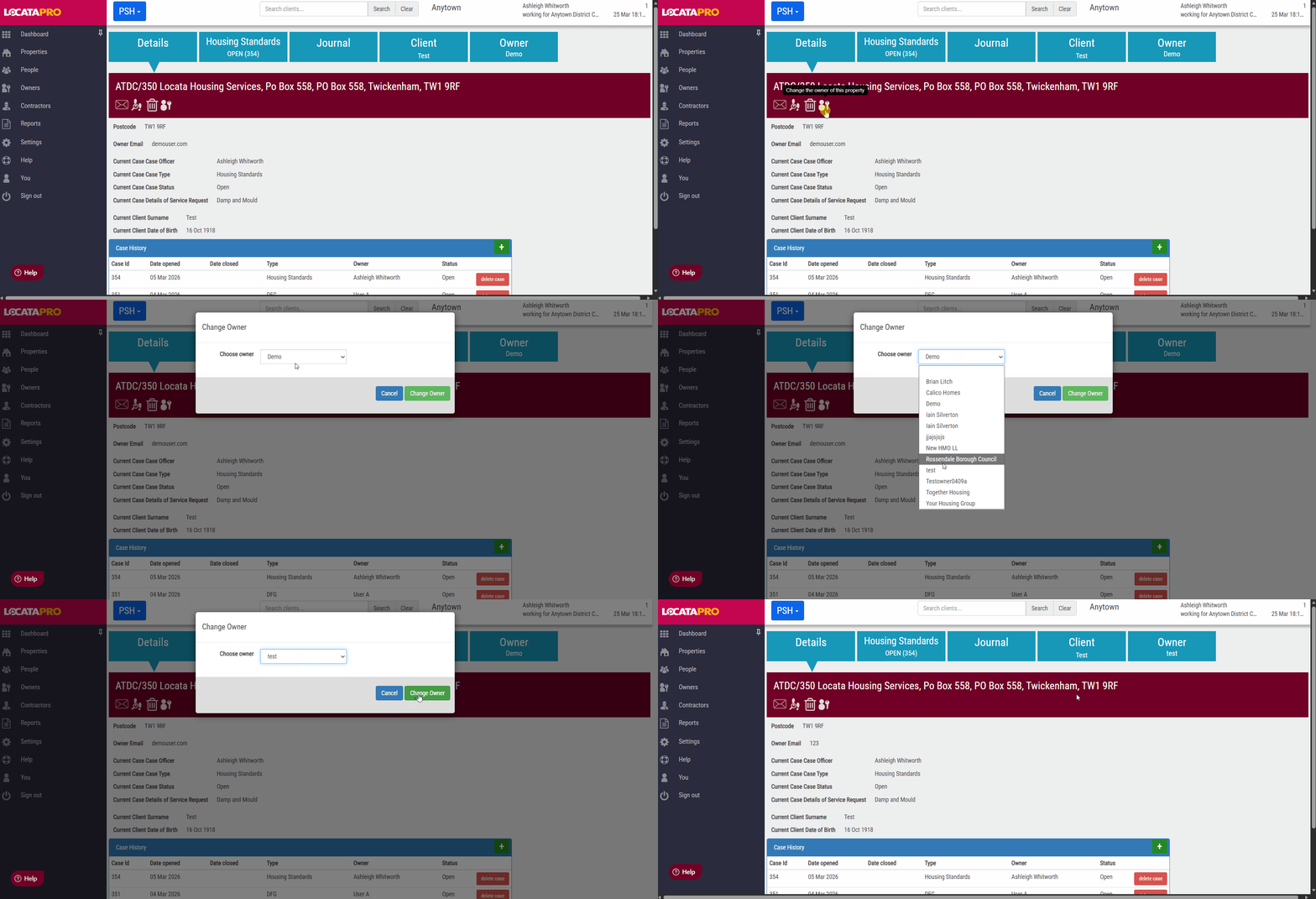
You can change the property owner by:
- When in the property record
- Click on the change the owner of this property
- Select from the dropdown list of PSH landlords and click Change Owner
Adding a Client
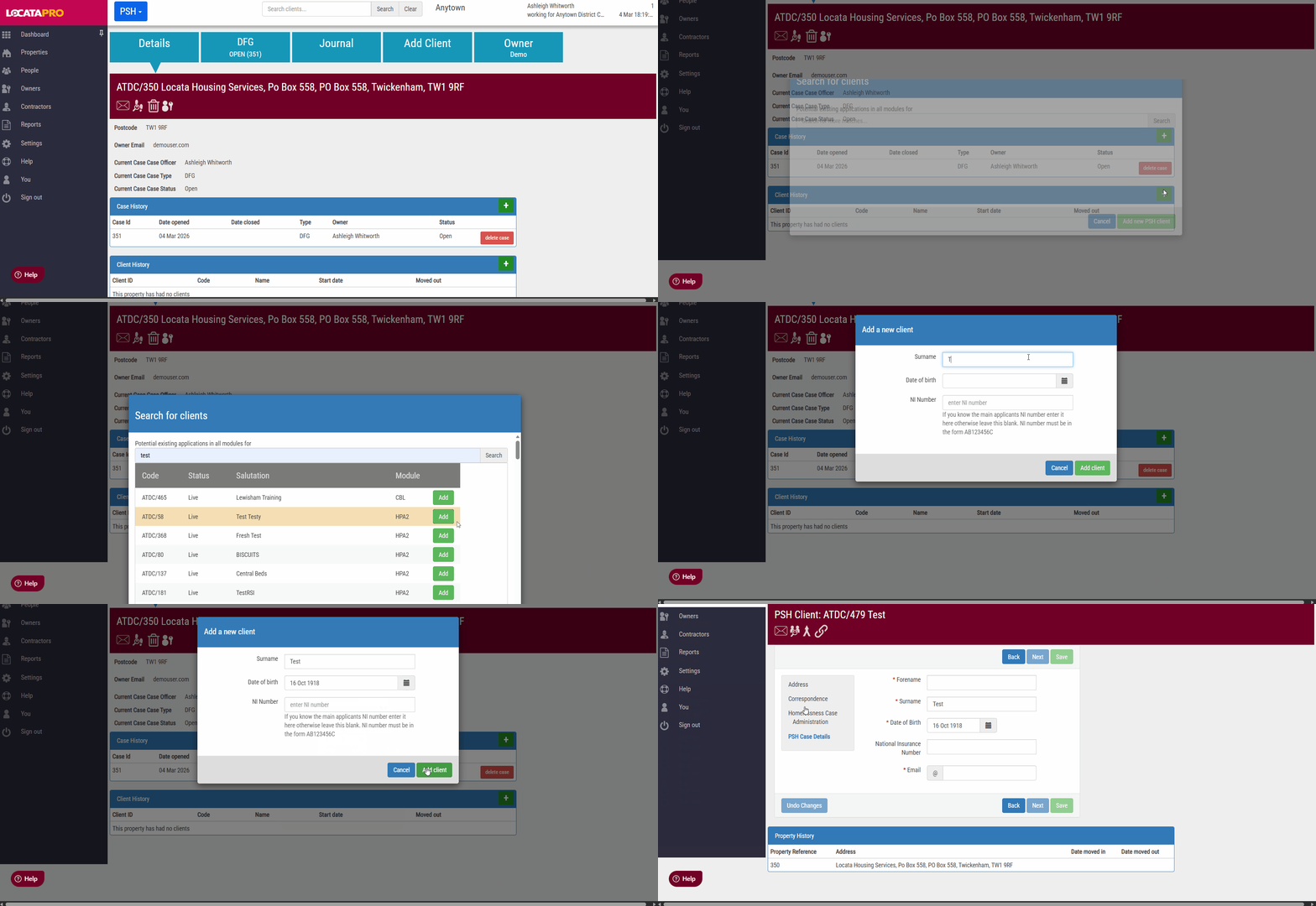
You can add a client into the property by:
- Clicking the Add Client square of the green + icon in the Client History box under the property details tab.
- Search their name to see if they already exist in any of our other modules that you use. If not, click Add a new client.
- Enter their details. If there are any possible matches, they will show below and you can view them. If they are not the same person, you can click Add client.
Was this article helpful?
That’s Great!
Thank you for your feedback
Sorry! We couldn't be helpful
Thank you for your feedback
Feedback sent
We appreciate your effort and will try to fix the article