This article explains how to create and manage contractors.
TABLE OF CONTENTS
Adding a Contractor
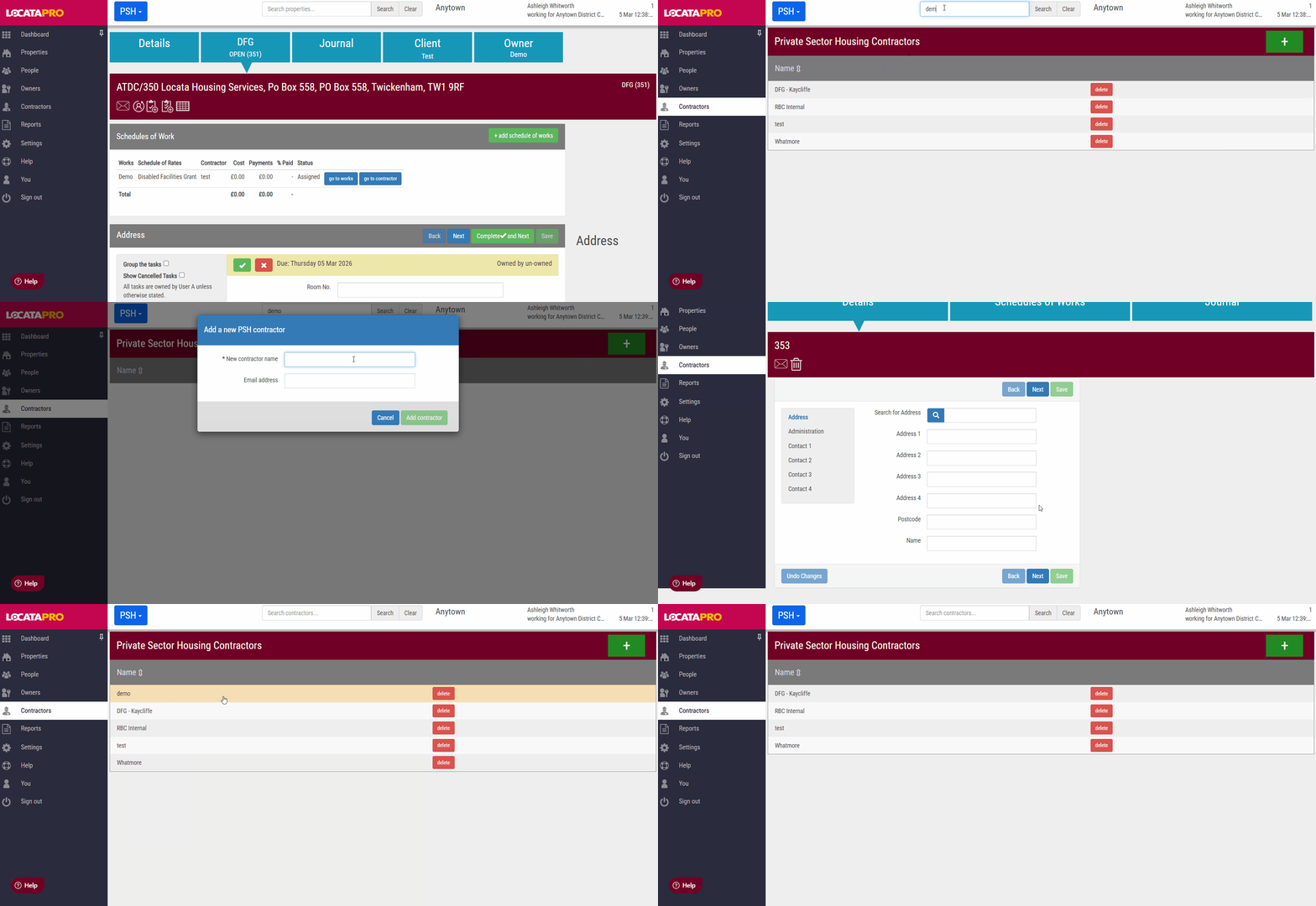
- On the left hand side menu, click Contractors.
- First search to ensure they don't already exist on the system. You can search by:
- Contractor name
- Street name
- Postcode
- If they don't exist already click the green + button.
- Fill in their details and click Add contractor.
Managing Contractors
To manage a contractors details.
- On the left hand side menu, click Contractors.
- Search for the contractor or scroll down the list
- Click on the relevant contractor to open their details
- Once you have amended click Save
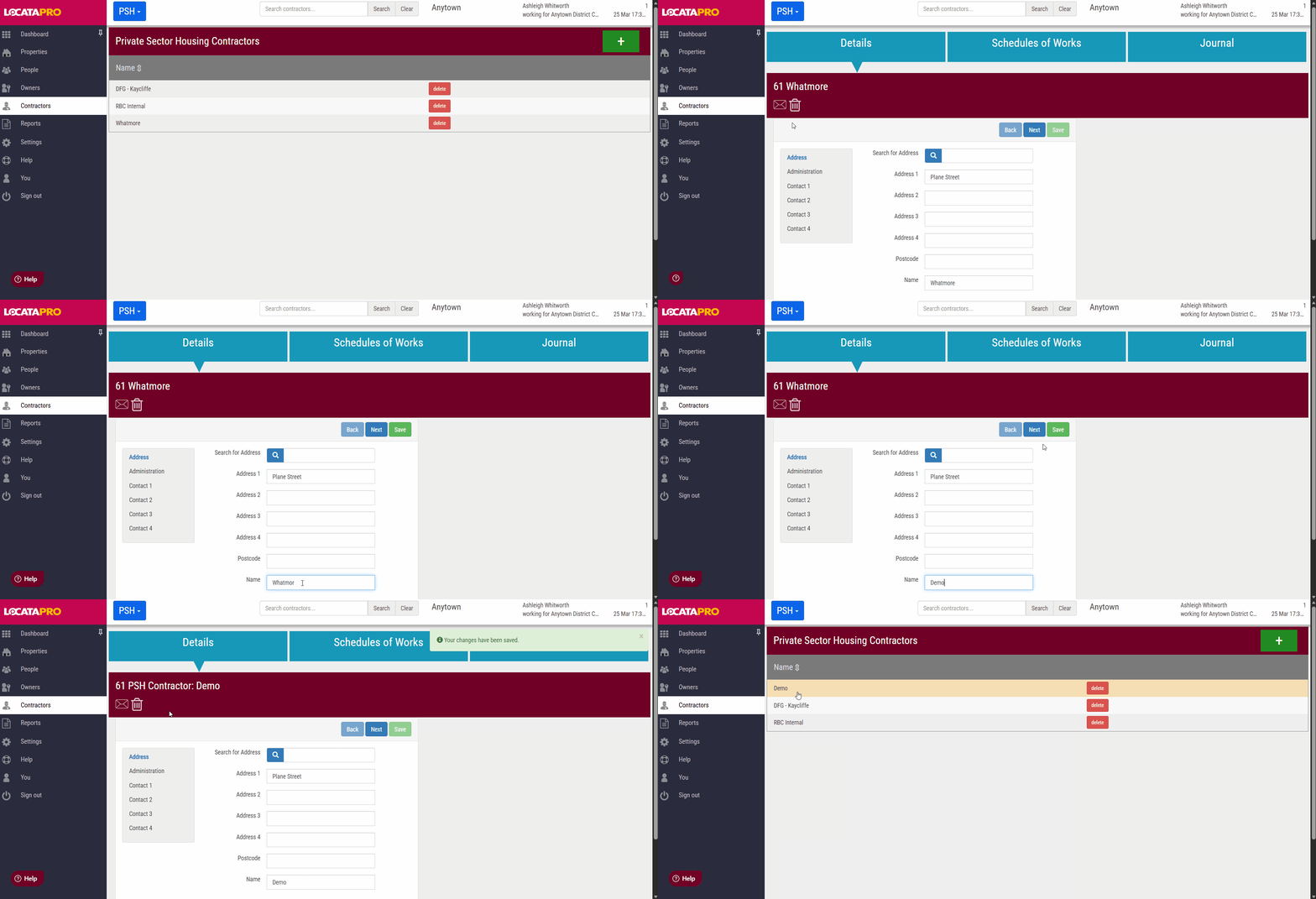
Info: Each contractor has their own journal which can be used to record key information about the contractor such as invoices, personal liability insurance certificate
Assigned schedules of works
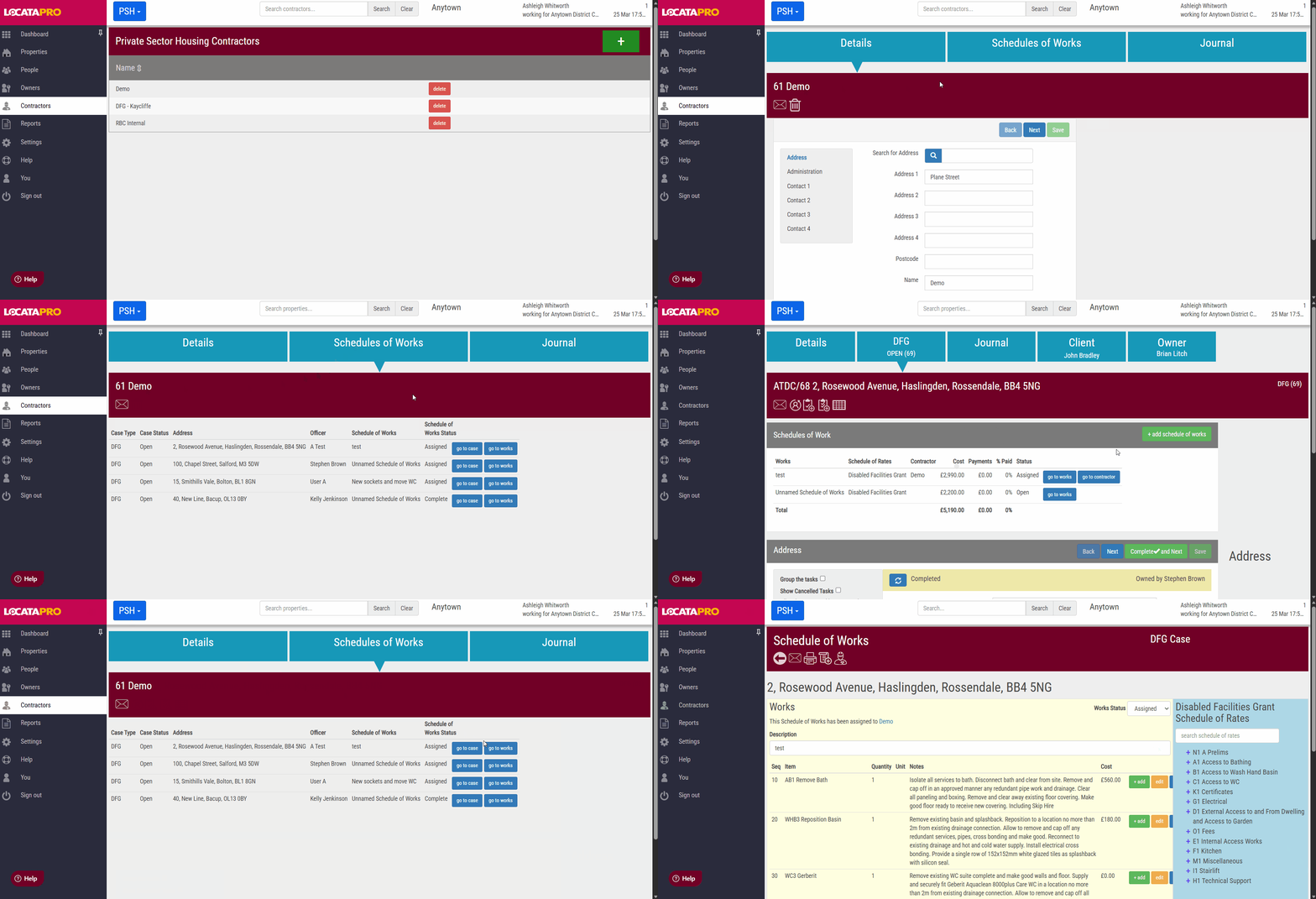
You can access details of all the schedules of works assigned to each contractor. To do this:
- On the left hand side menu, click Contractors.
- Search for the contractor or scroll down the list
- Click on the relevant contractor
- Click on the Schedule of works tab
- This screen displays:
- Case type
- Case status
- Property address
- Officer
- Name of schedule of works
- Status of schedule of works (Assigned, Cancelled, Complete)
- You can then choose to go to the case details or to the schedule of works
Was this article helpful?
That’s Great!
Thank you for your feedback
Sorry! We couldn't be helpful
Thank you for your feedback
Feedback sent
We appreciate your effort and will try to fix the article