This article explains how to add posts that appear on the Landing Page.
TABLE OF CONTENTS
- Creating a new post for the Landing Page
- Adding Documents to a Landing Page post
- Manage Home Page Dashboard
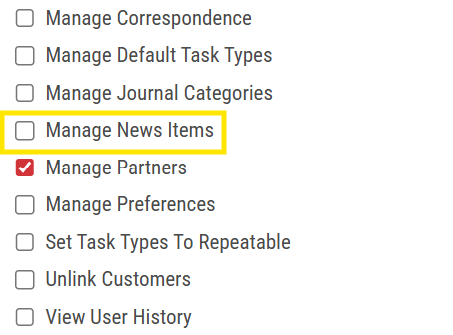
Note: You will need the Manage News Items permission to be able to add posts to the landing page.
Creating a new post for the Landing Page
Some text here about this section
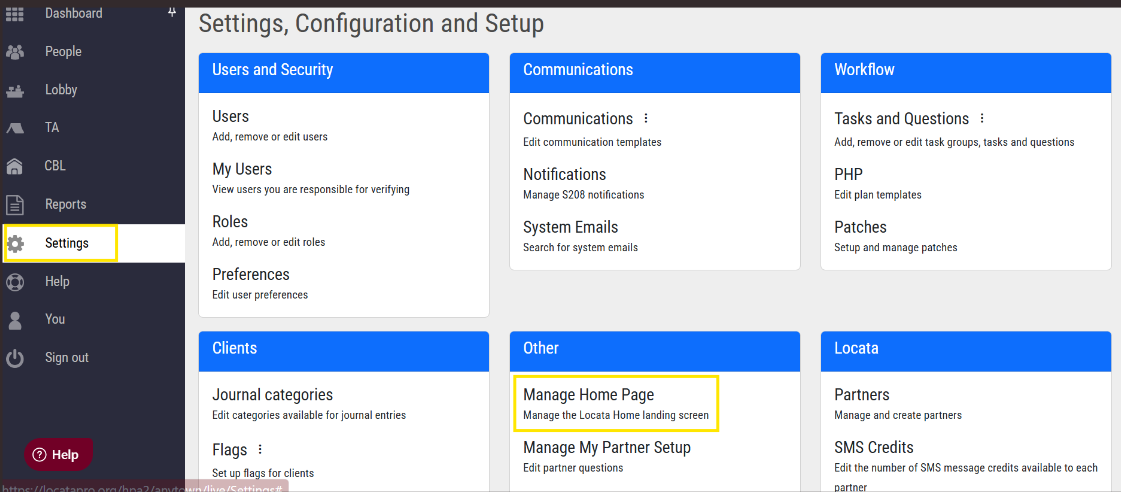
- Go to Settings.
- Click Manage Home Page.
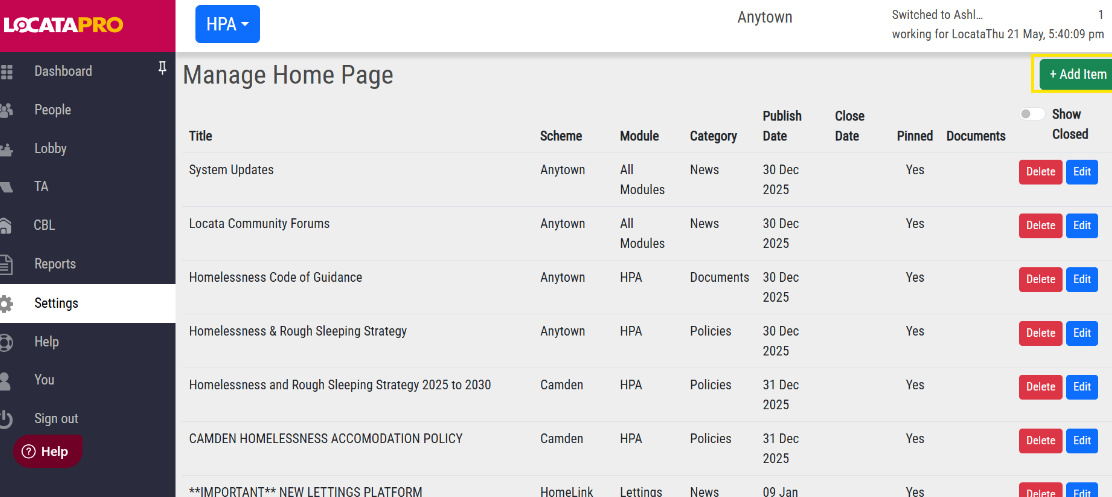
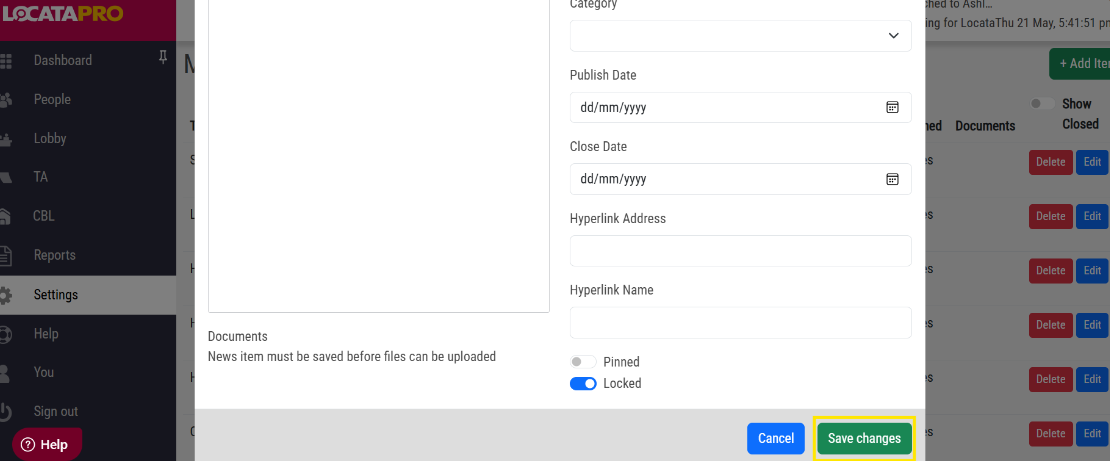
- Click Add Item.
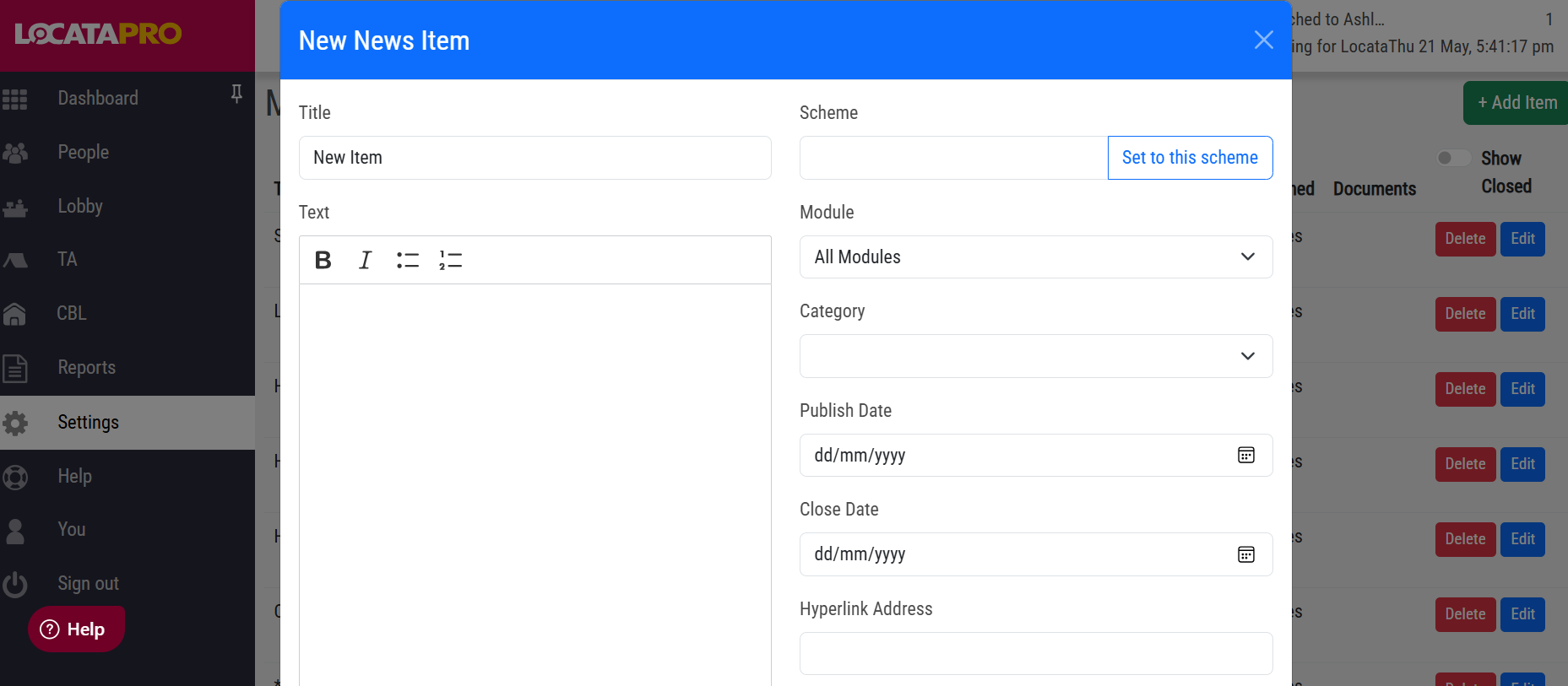
- Write a Title.
- Add any text in the Text box that you want to be shown in the box on the home page.
- Leave Scheme clear if you want it to show on the landing page of all our clients. Likewise if you want it to only appear on one client's landing page, click Set to this scheme and it will auto fill.
- Select whether you want it to appear on all Modules landing pages or just a certain one.
- Select a Category for the post.
- Select a Publish Date, if you don't want it to appear immediately, you can set it for a later date.
- If it's a temporary post, select a Close Date, or leave this blank if it's a permanent post.
- Click Save changes.
Adding Documents to a Landing Page post
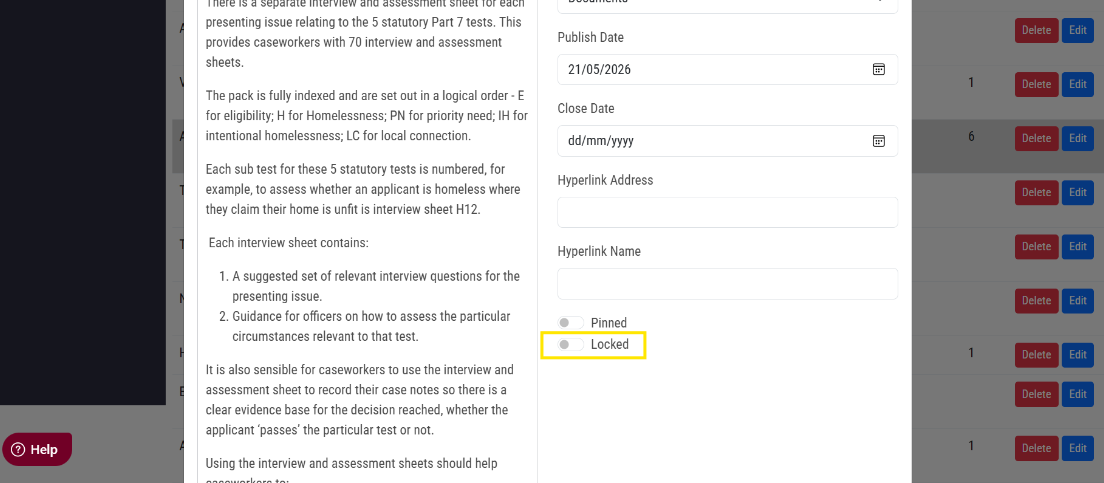
- Firstly, to be able to add a document, Locked needs to be toggled off.
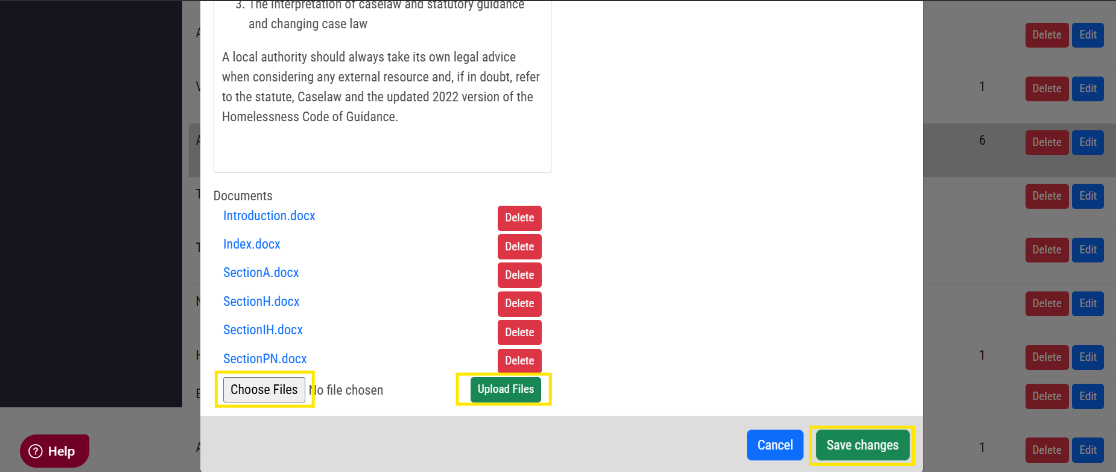
- Scroll to Documents, click Choose Files.
- Select the file.
- Click Upload Files.
- Click Save changes.
Manage Home Page Dashboard
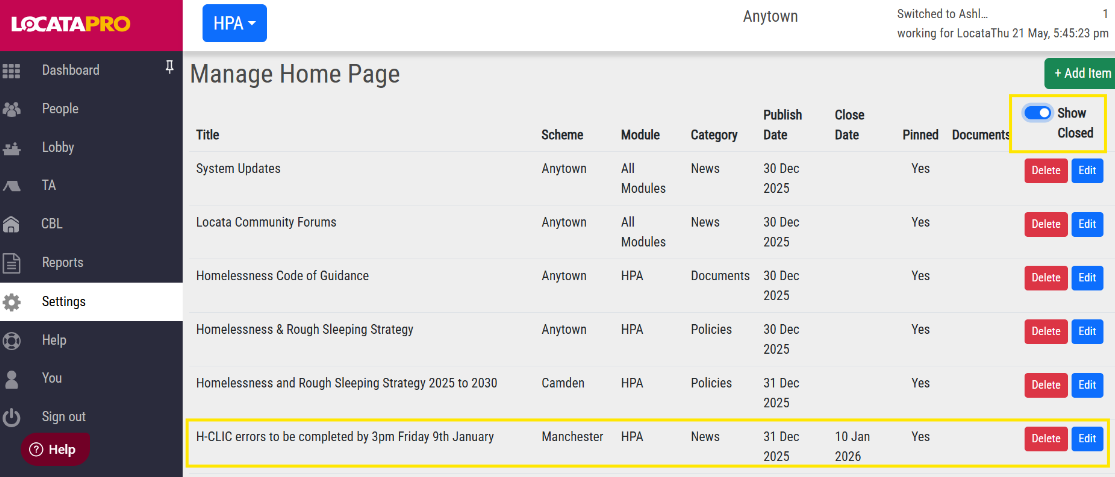
- The Manage Home Page on AnyTown shows the Title of each post and then which Schemes the posts are visible on. If it is blank, the post shows on all landing pages.
- The next columns are self explanatory. Pinned means it has been selected to show at the top of the landing page.
- Documents will show the number of documents on certain posts that have them.
- Toggle on the Show Closed to see past posts that are no longer on the landing page.
Was this article helpful?
That’s Great!
Thank you for your feedback
Sorry! We couldn't be helpful
Thank you for your feedback
Feedback sent
We appreciate your effort and will try to fix the article