This is a quick guide to the new shared landing page you will see when logging into LocataPro modules, including how to navigate it, manage content, and customise your default view.
TABLE OF CONTENTS
- What is the New LocataPro Landing Page?
- Why Has the Landing Page Changed?
- Main Features of the Landing Page
- Managing the Home Page
- Accessing the Traditional Dashboard
- When Will This Change Go Live?
What is the New LocataPro Landing Page?
Locata has introduced a new shared landing page that appears immediately after you log into the system. This replaces the automatic load of the Dashboard and provides a clearer, more efficient starting point for all users.
This update gives customers a central place to share news, documents, policies, and training materials.
Why Has the Landing Page Changed?
The new landing page has been introduced for two key reasons:
Improved performance – Dashboards are resource-intensive, and many users log in simply to access shortlists, TA, or other tasks without needing the dashboard immediately.
Better access to shared information – Following the introduction of Lettings, many customers told us they missed the old homepage where they could display policy documents, training links, and guidance.
The new landing page addresses both of these needs and offers a cleaner, more informative start to each session.
Main Features of the Landing Page
A brief overview of what you will see:
Categories such as News and Documents
Hyperlinks to other pages or system screens
Attachments added to items
Recently Visited items for quick access
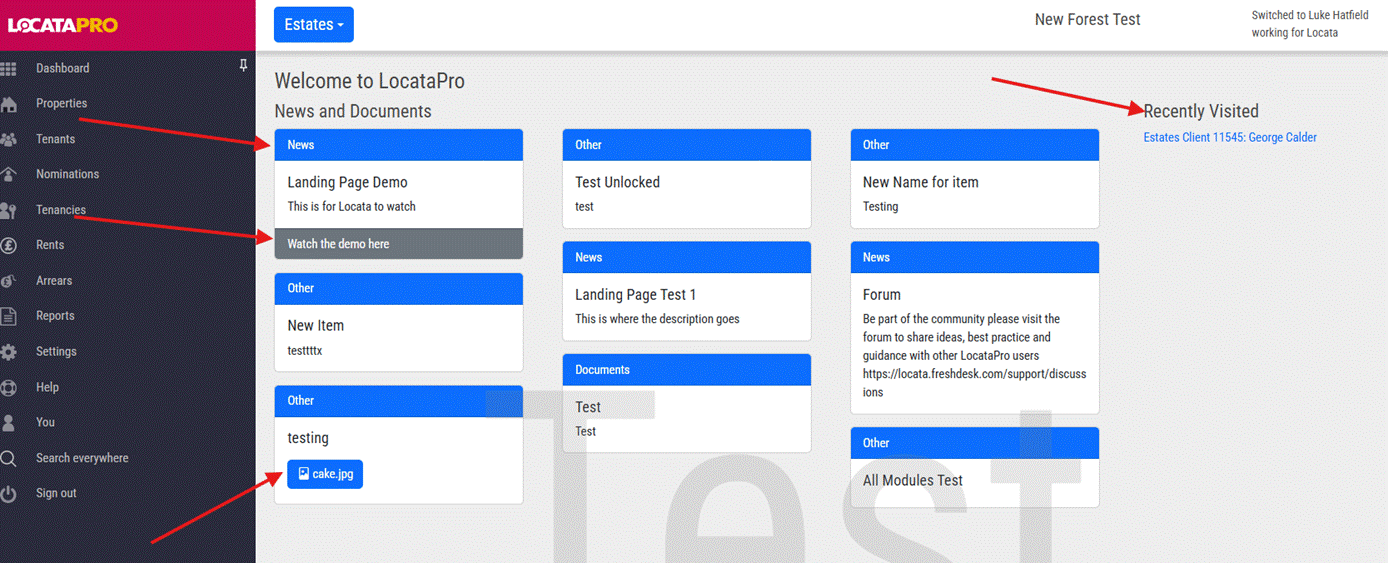
Note: To return to the landing page at any time, click the LocataPro icon in the top-left corner.
Managing the Home Page
Super users can control the content displayed to staff via the new Manage Home Page screen under Settings. This allows you to create and customise the cards that appear on the landing page. For more information on Managing the Home Page, click here.
Accessing the Traditional Dashboard
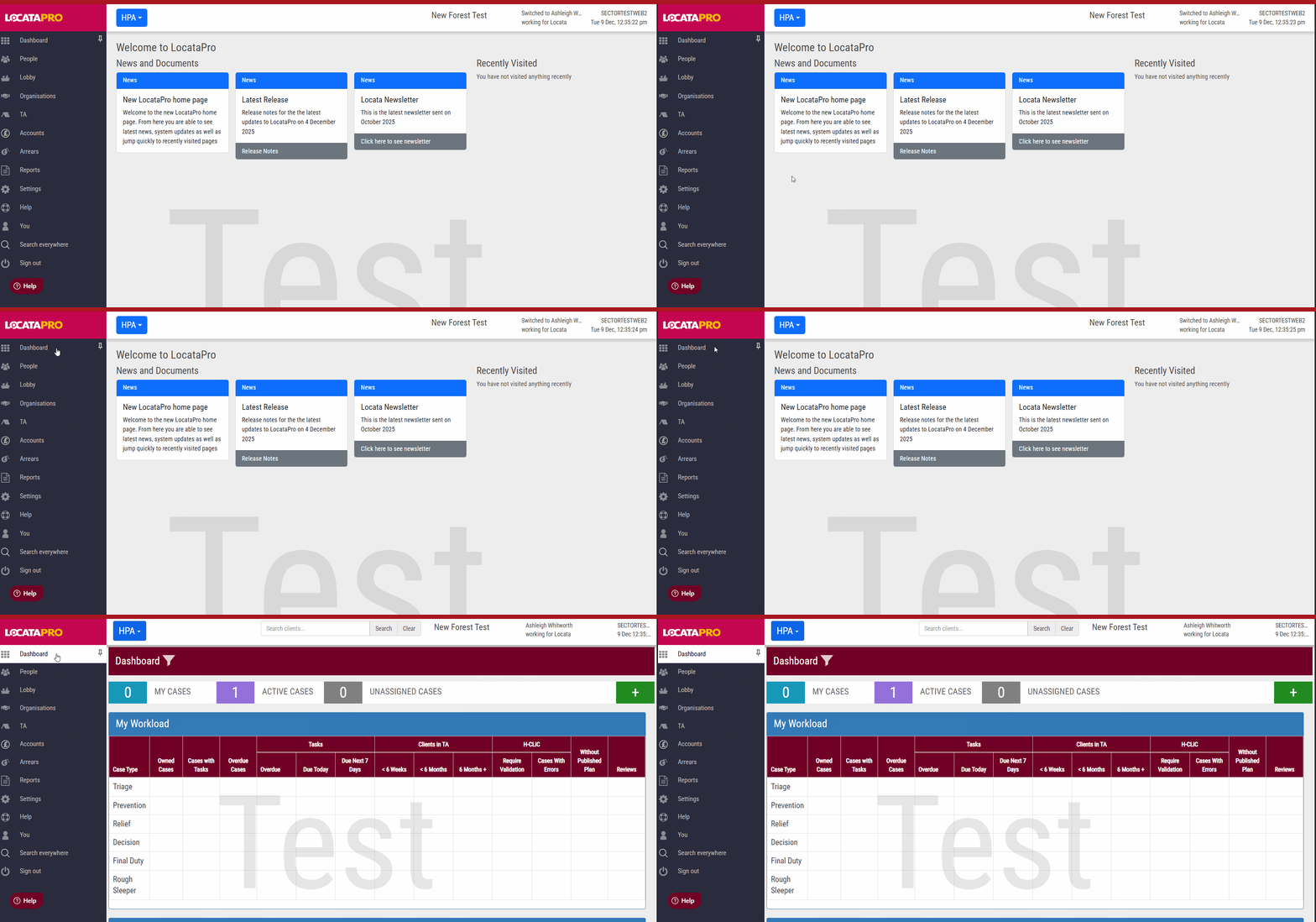
If you want to view your dashboard after logging in:
On the left-hand menu, click Dashboard.
Your usual dashboard will load exactly as before.
When Will This Change Go Live?
Locata plans to release the new shared landing page on Tuesday 23rd December 2025.
Was this article helpful?
That’s Great!
Thank you for your feedback
Sorry! We couldn't be helpful
Thank you for your feedback
Feedback sent
We appreciate your effort and will try to fix the article