This guide explains how to add a case type to a tenant and how to create a new case type within the Locata Estates system. Following these steps will ensure your tenant cases and workflow tasks are set up correctly.
TABLE OF CONTENTS
Add a Case Type to a Tenant
This section explains how to add a new case to an existing tenant record in the Estates system.
Open the relevant Tenant record.
Go to the Summary tab.
Click Add New Case.
Select a Case Type.
Click Create Case.
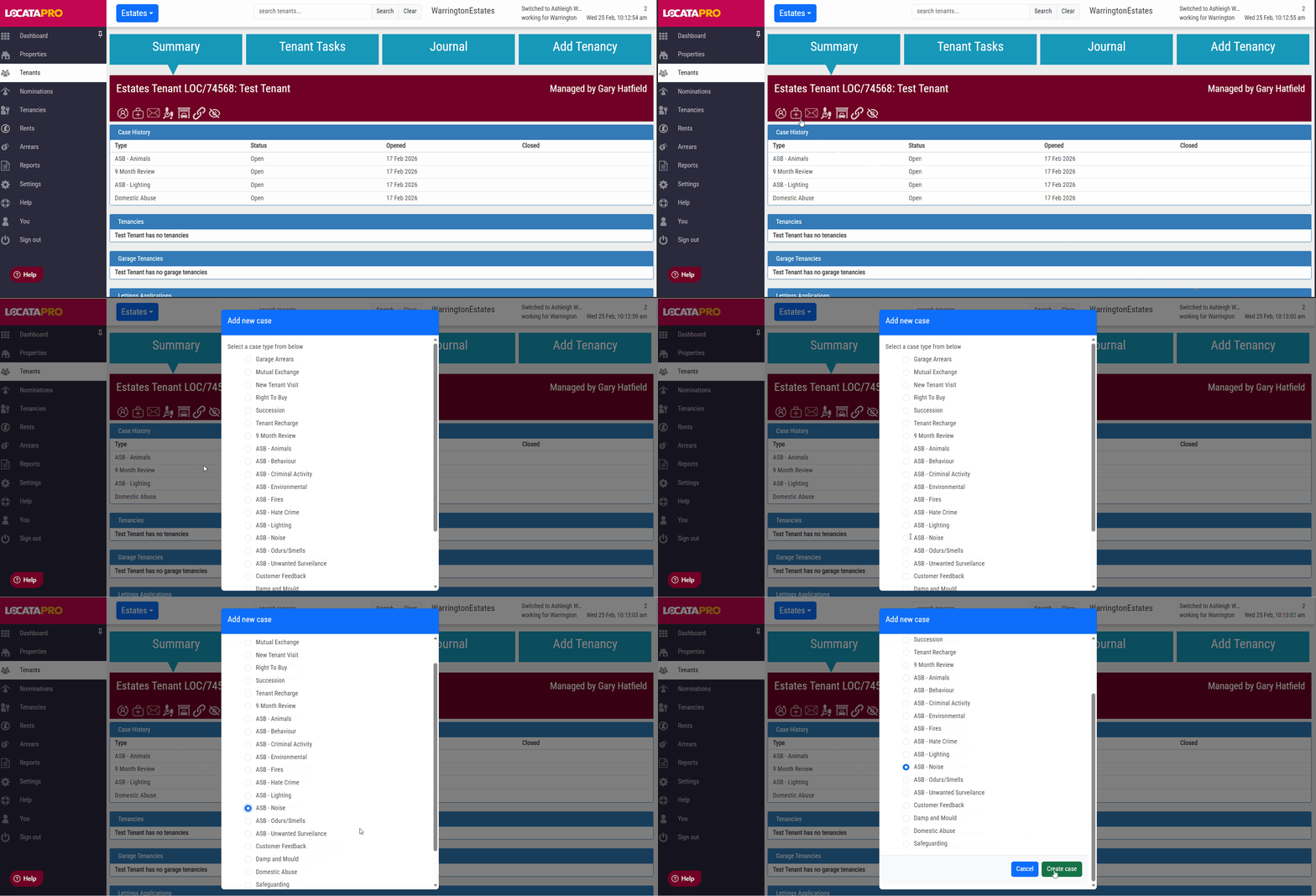
The new case will now appear on screen and be linked to the tenant record.
When you open a case type, you will see the associated tasks and questions linked to it only if there is a tenancy (you will be able to see this in the last tab, it will say Tenancy instead of Add Tenancy.
These tasks and questions are configurable and can be tailored to suit your organisation’s workflow.
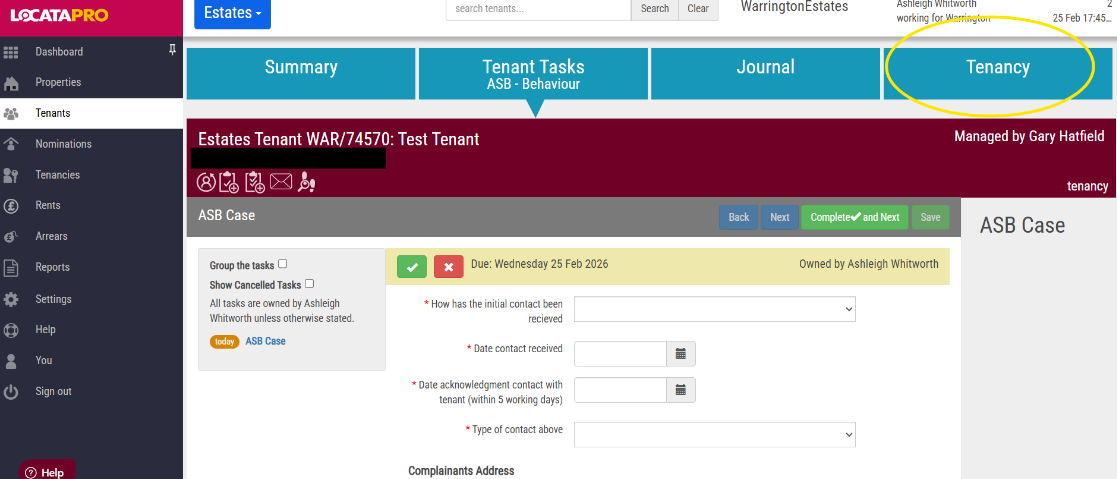
Did you know: You can have multiple different case types open for a tenant at the same time.
Create a New Tenant Case Type
This section explains how to create a new case type in the Estates workflow settings.
Note: You must have Superuser permissions to create or edit case types.
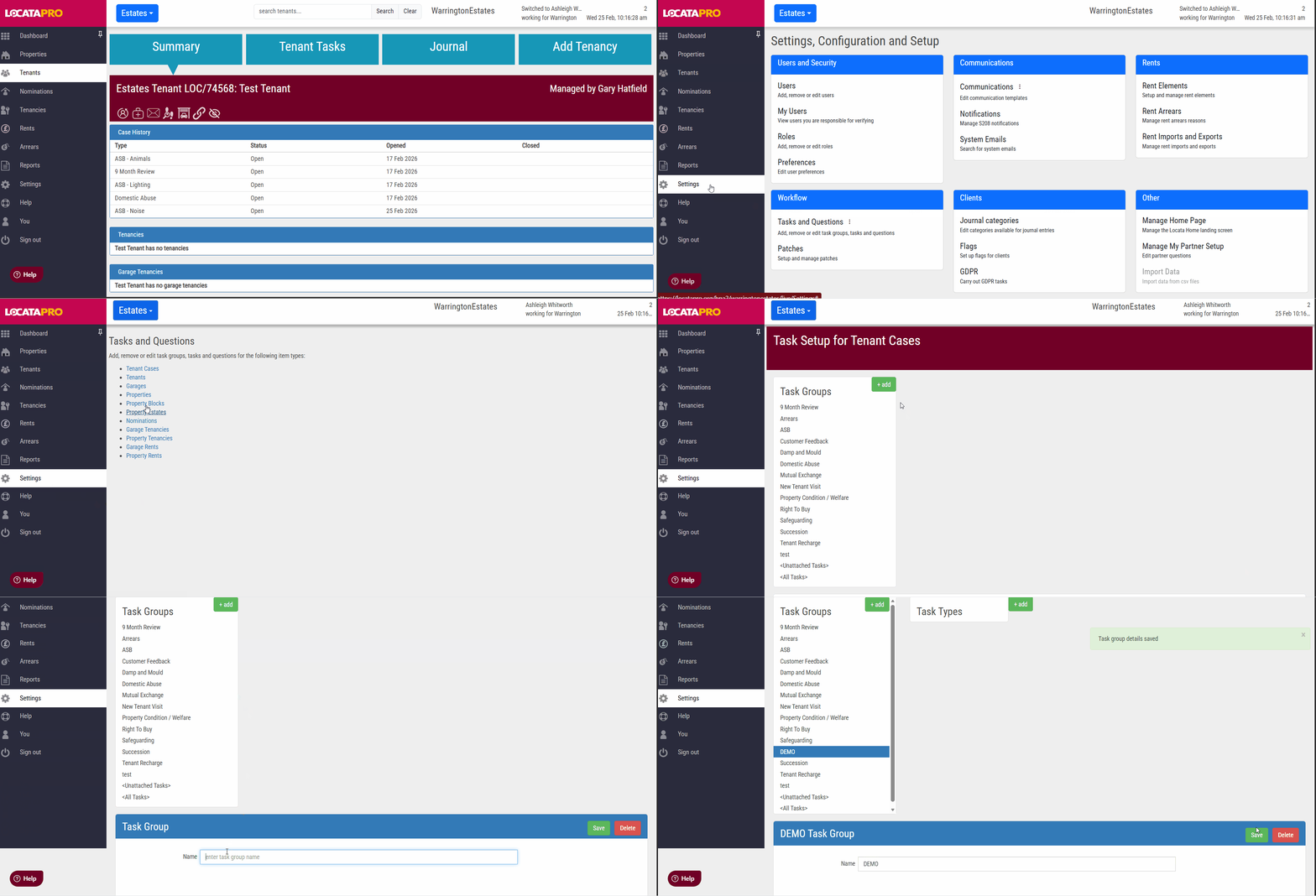
Step 1: Create the Case Type (Task Group)
Go to Settings.
Click Tasks and Questions under the Workflow section.
Select Tenant Cases.
In the Task Groups section, click the green + Add button.
Enter the name of the new case type.
Click Save.
Step 2: Add Tasks to the Case Type
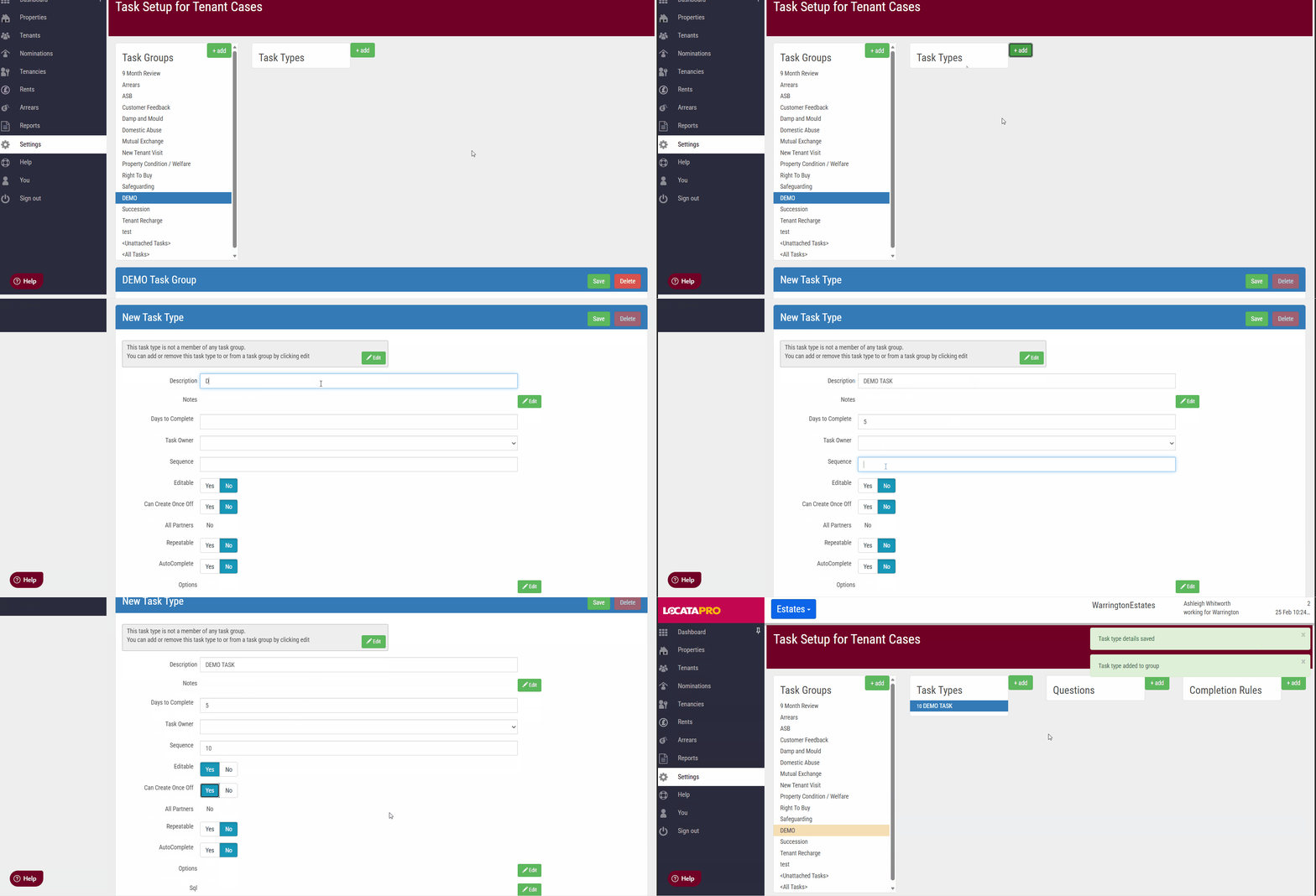
Next, you need to add the tasks that will appear within this case type.
In Task Types, click the green + Add button.
Enter the task details as required.
Click Save.
Repeat these steps for each task you want included in the case type.
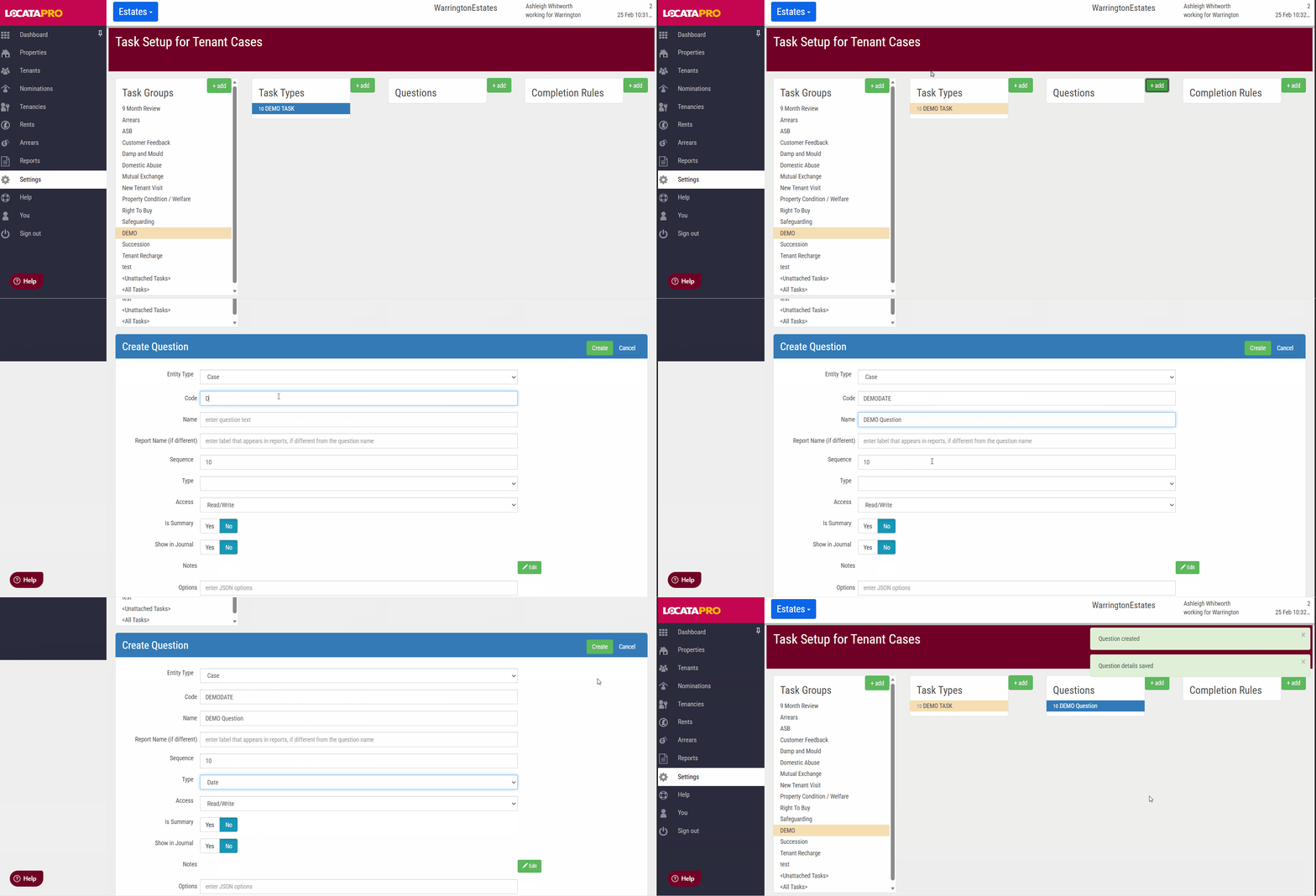
Step 3: Add Questions to Tasks
You can now add questions to each task.
In the Questions section, click the green + Add button.
Enter the question details.
Click Save after creating each question.
Repeat for all required questions.
Step 4: Add the Case Type to the Dropdown List
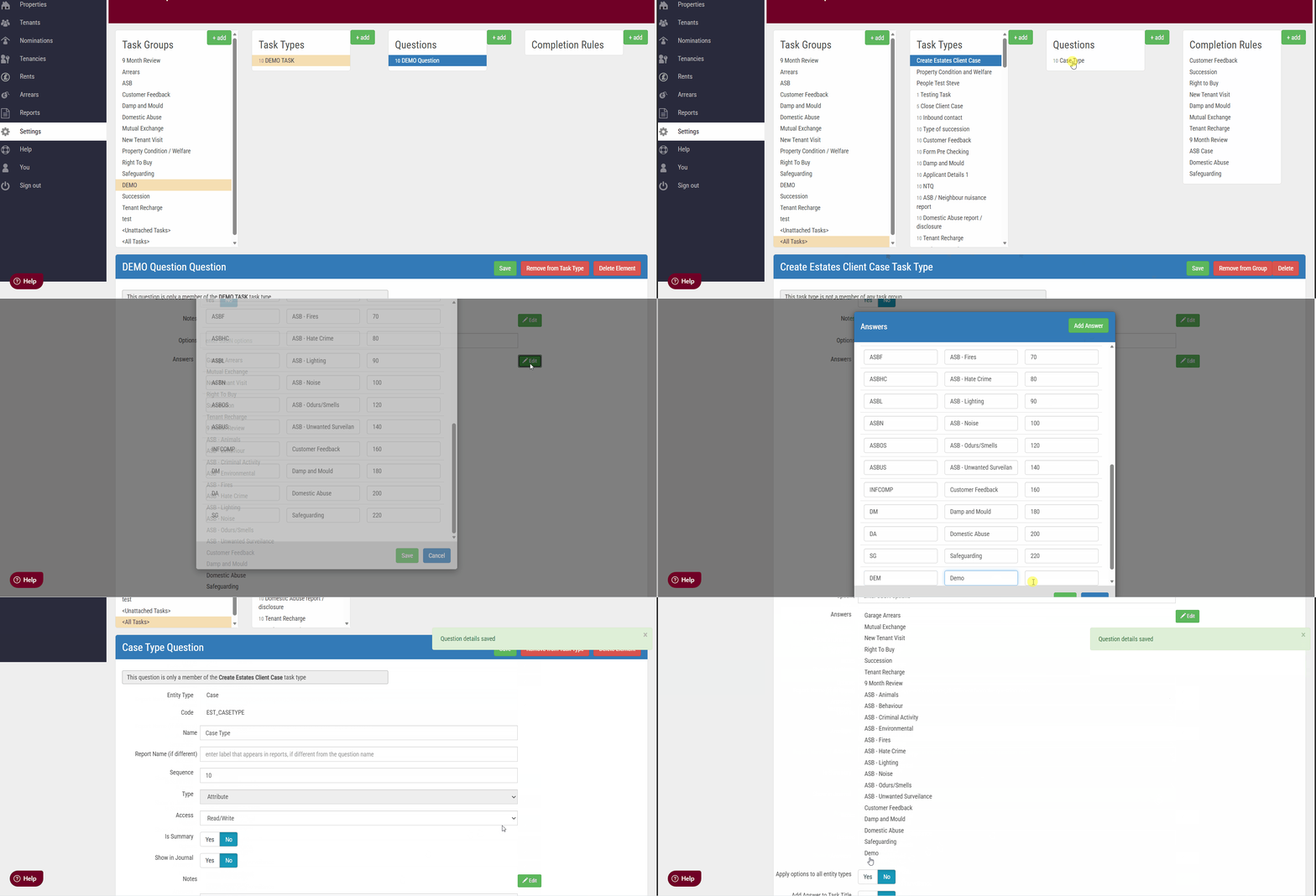
To make the case type selectable when creating a tenant case:
Click All Tasks under Task Groups.
Select Create Estates Client Case under Task Types.
Click Case Type under Questions.
Click Edit next to Answers.
Click Add Answer.
Enter the details.
Set the Sequence number (this controls the order in the dropdown list).
Click Save.
Click Save again in the Case Type question.
Step 5: Set Completion Rules
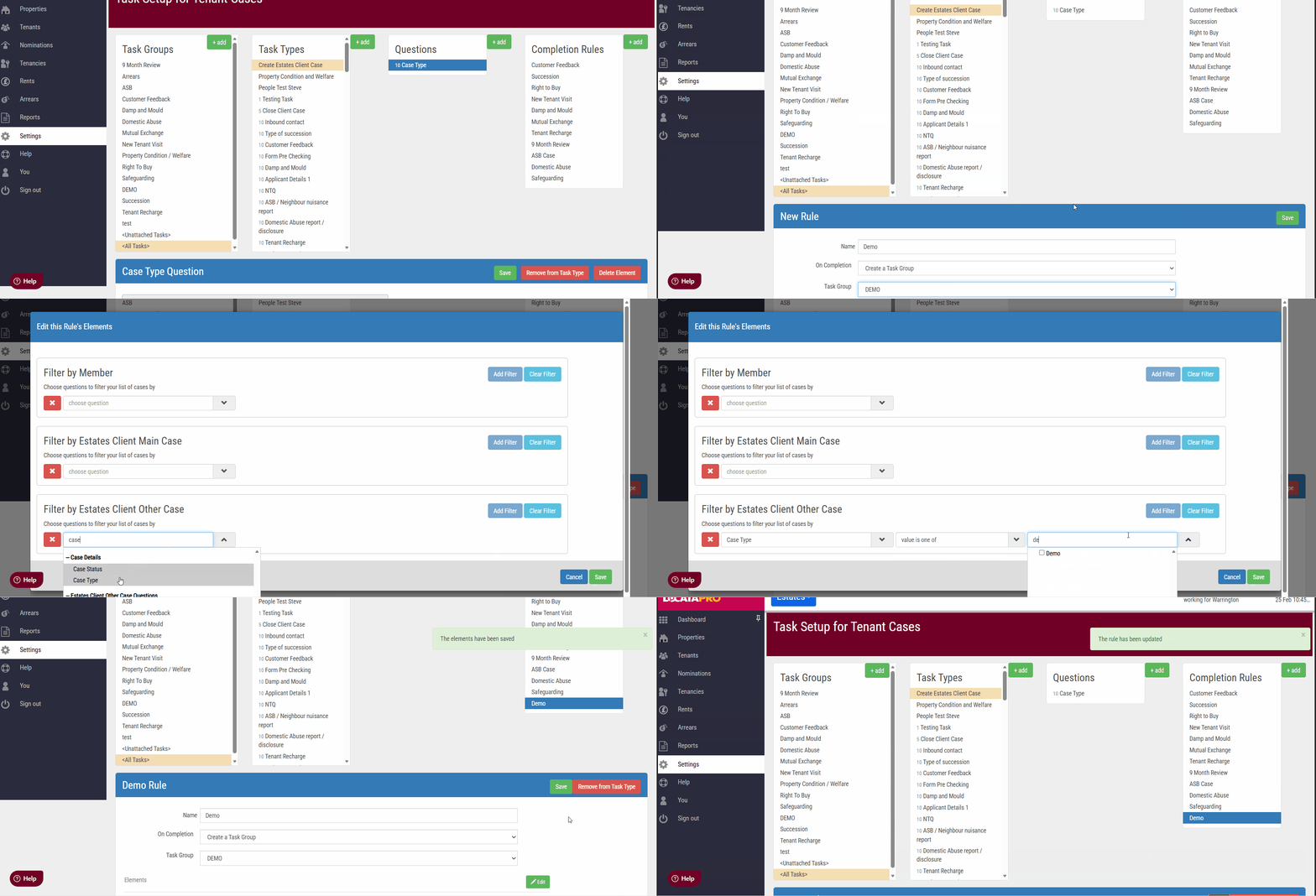
Finally, configure completion rules for the new case type.
Click the green + Add button next to Completion Rules.
Enter a name for the rule.
Under Task Group, select the case type.
Click Save.
Click Edit next to Elements.
Under Filter by Estates Client Other Case, select: Case Type - Value is one of - Select your new case type
Click Save.
Your new tenant case type is now fully configured and ready to use in the Estates workflow.
Was this article helpful?
That’s Great!
Thank you for your feedback
Sorry! We couldn't be helpful
Thank you for your feedback
Feedback sent
We appreciate your effort and will try to fix the article