This article includes how to show deleted Temporary Accommodation (TA) properties and reinstate them if they have been removed in error.
TABLE OF CONTENTS
- How to Add TA Properties
- How to Show Deleted TA Properties
- How to Reinstate a Deleted Property
- How to Hide Deleted Properties Again
How to Add TA Properties
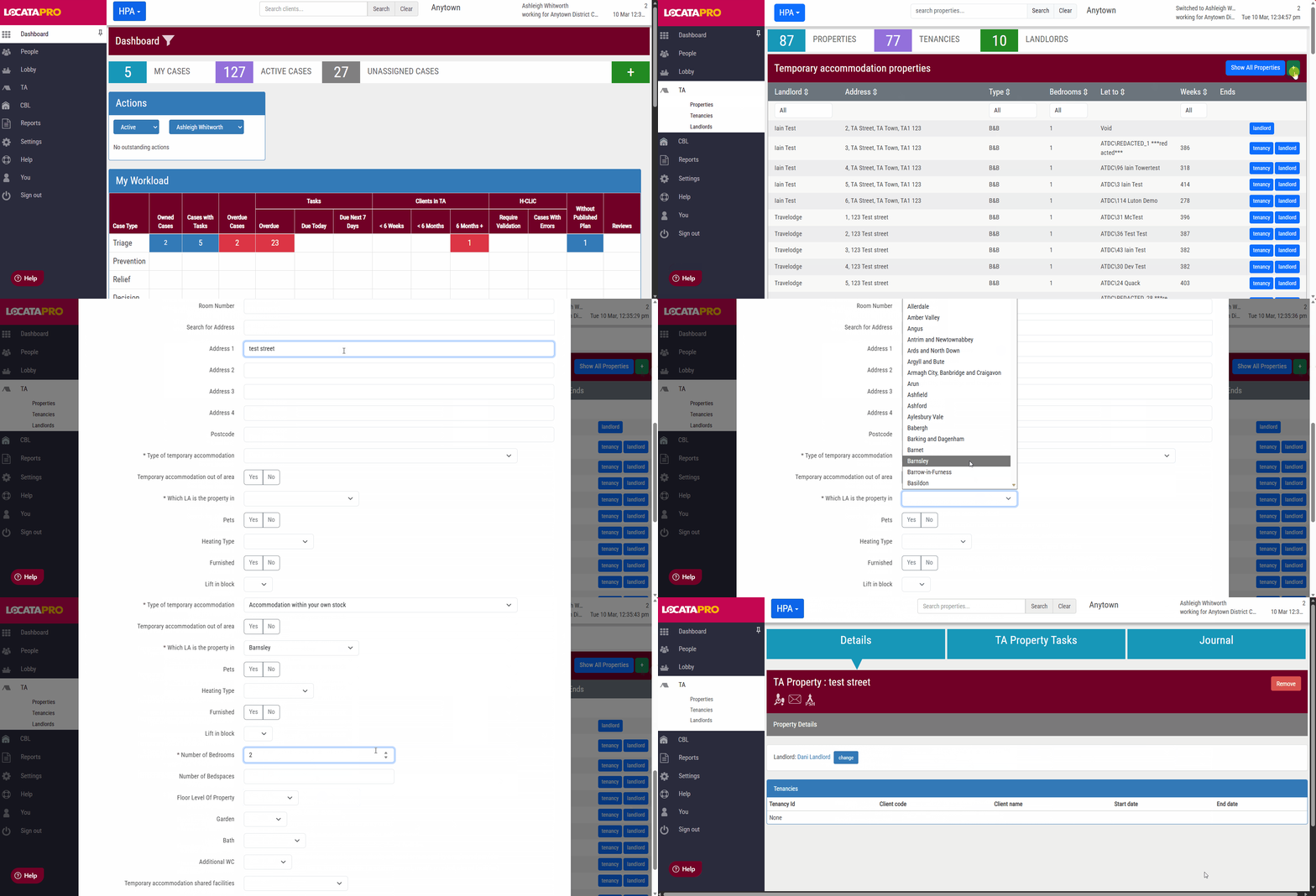
- Go to TA on the left hand side and click Properties.
- Click the green + icon.
- Fill in the details. You can create multiple properties in one go or just add the details for one property.
- Press Create properties.
- This will take you to the property record.
Did you know: If it’s a property of a new landlord, the landlord needs to be added to the system first.
How to Show Deleted TA Properties
This section explains how to view all deleted TA properties using the new Show All Properties option.
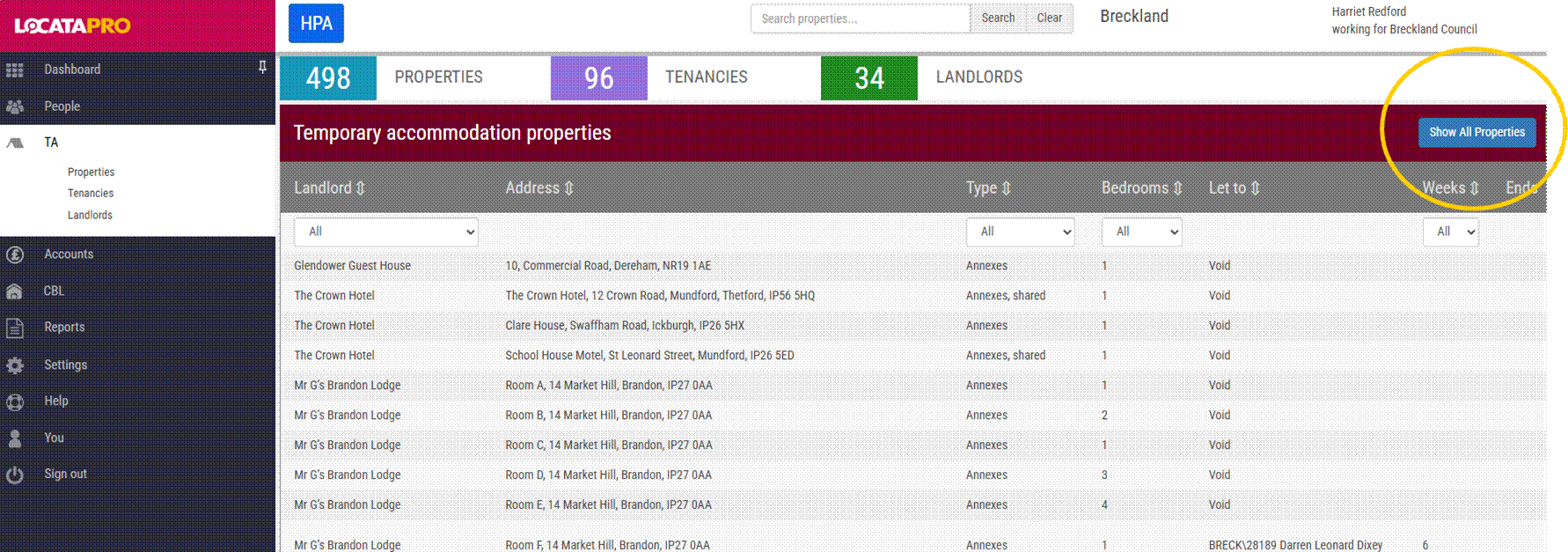
Go to the TA Property screen.
Select the blue Show All Properties button in the wine bar.
Deleted properties will now appear in the results alongside active properties.
Note: This feature is designed to help when a property has been deleted in error. It does not include deactivated properties, but properties can still be deactivated where the property is no longer in use.
How to Reinstate a Deleted Property
This section shows how to restore a deleted TA property, including its linked records.
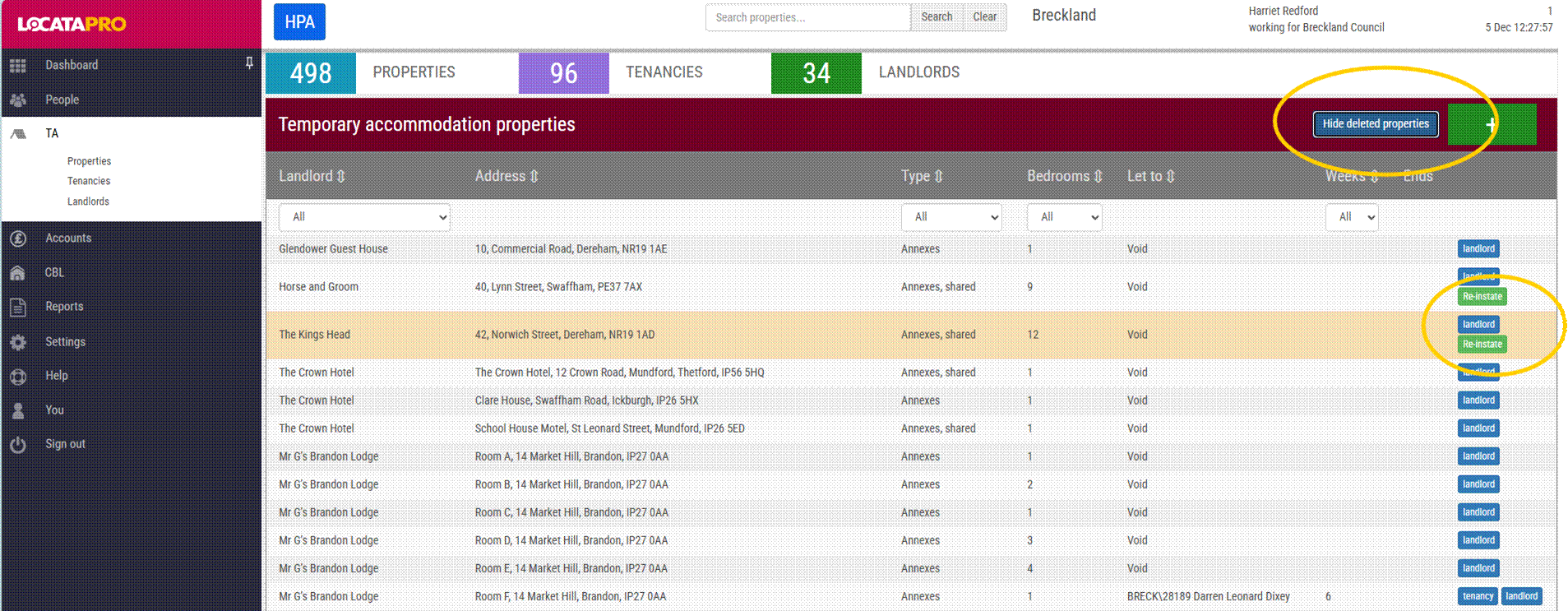
In the search results (with deleted properties shown), locate the property you want to restore.
Click Re-instate next to the deleted property.
The system will fully restore:
Previous tenancies
Rent accounts
Journal notes
Attachments
Any associated records linked to the property
Note: Reinstating a property brings back all historic data exactly as it was before deletion.
How to Hide Deleted Properties Again
This option allows you to return to the default view and hide deleted properties.
From the TA Property Search screen, select Hide Deleted Properties.
Only active (and deactivated) properties will display in the list.
Was this article helpful?
That’s Great!
Thank you for your feedback
Sorry! We couldn't be helpful
Thank you for your feedback
Feedback sent
We appreciate your effort and will try to fix the article