This article will explain how to get the most out of our TARA (Temporary Accommodation Rent Accounting) bolt-on. It will include how to view, close and reopen a rent account. How to create a loan account, add a legal and insolvency account, and add a storage account. It will also explain transactions and how to transfer money from accounts. Finally it will go into detail on arrears aware.
TABLE OF CONTENTS
- Viewing Accounts
- Close an Account
- Reopen a Closed Account
- Create a Loan Account
- Add Legal & Insolvency Account
- Add Storage Account
- Print Rent Account/Rent Statement
- Transfer money between a customer's account
- Go to the Transactions Tab
- Transactions
- Editing Transactions
- Transfer Transactions
- Delete a Transaction
- Arrears Aware
Viewing Accounts
There are multiple ways to access the accounts.
From Accounts in the main menu:
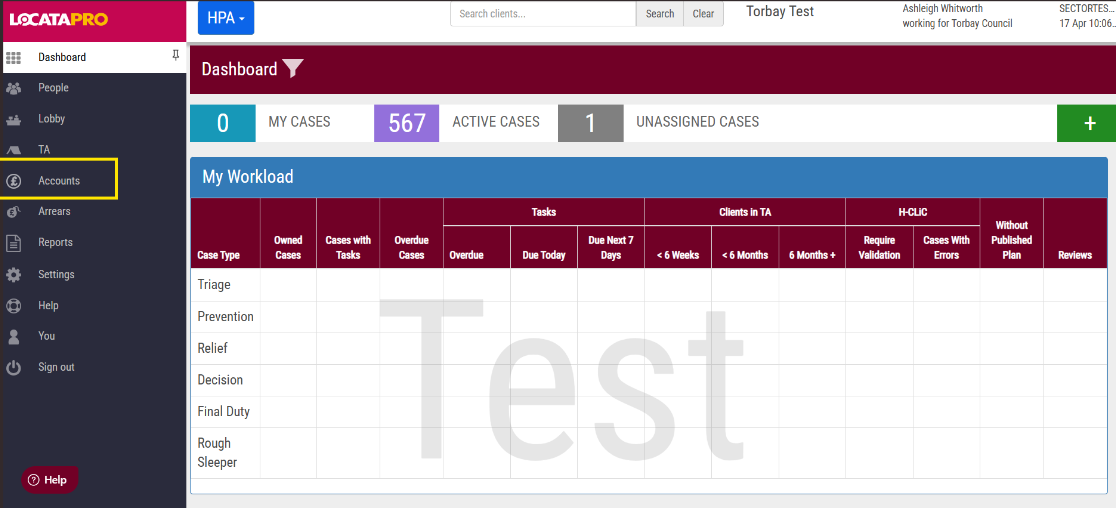
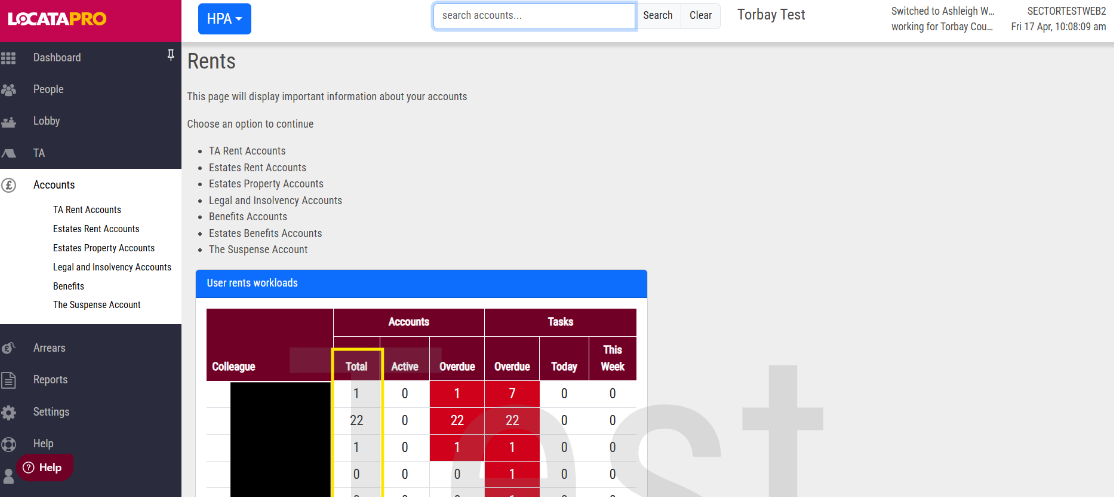
- Go to Accounts in left hand menu and select the relevant account type i.e. TA Rent Accounts, Storage Accounts etc.
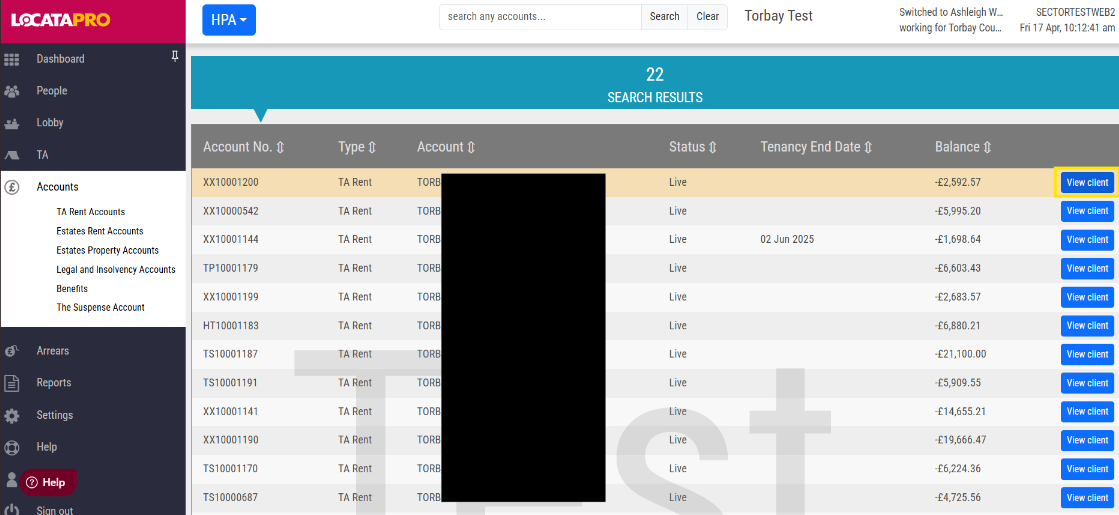
- Then either select the number next to all accounts or your accounts. This will bring up all those accounts or use the search box to find a specific account.
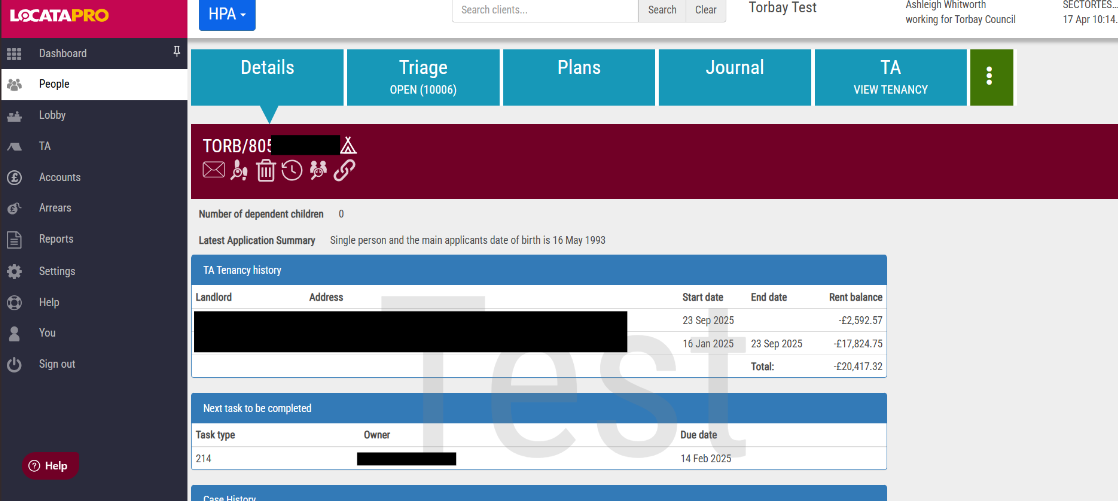
- From the accounts that appear, either click along the row to go to that account or press the View Client button which will take you to their HPA2 or Estates Case instead of their account.
From the HPA2 Case:
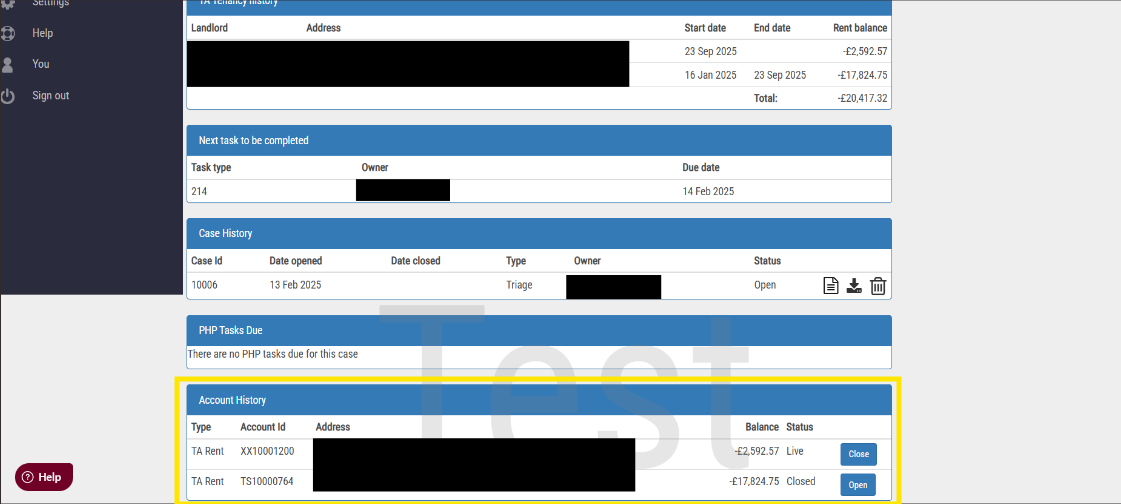
- When in a HPA2/Homelessness Case, ensure you are on the Details tab and then scroll to the bottom of the page to the Account History section. Here you will find all accounts for this customer including account type, ID, balance and status.
From the Tenancy:
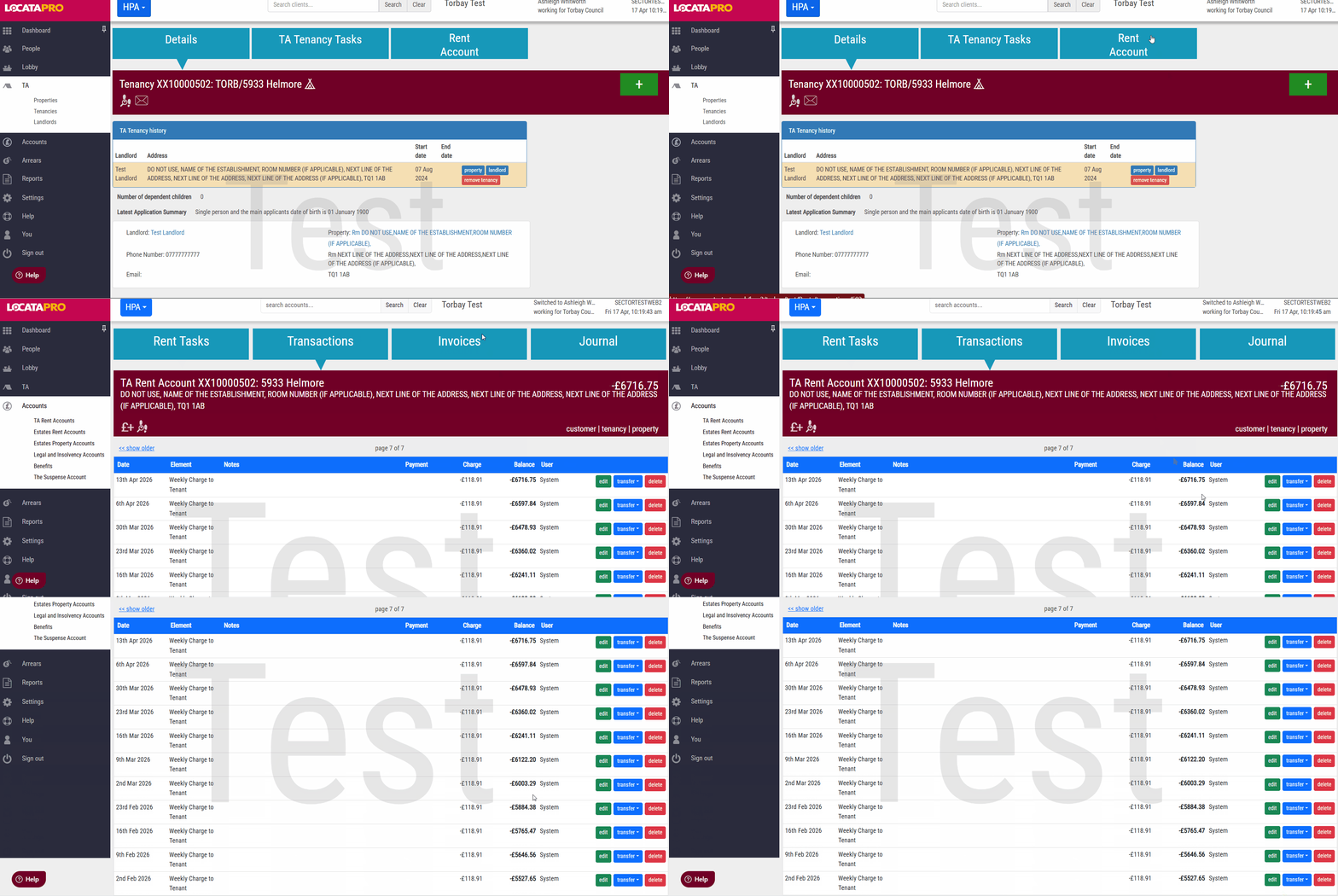
- When in a tenancy, select the Rent Account tab, this will take you to the rent account.
Close an Account
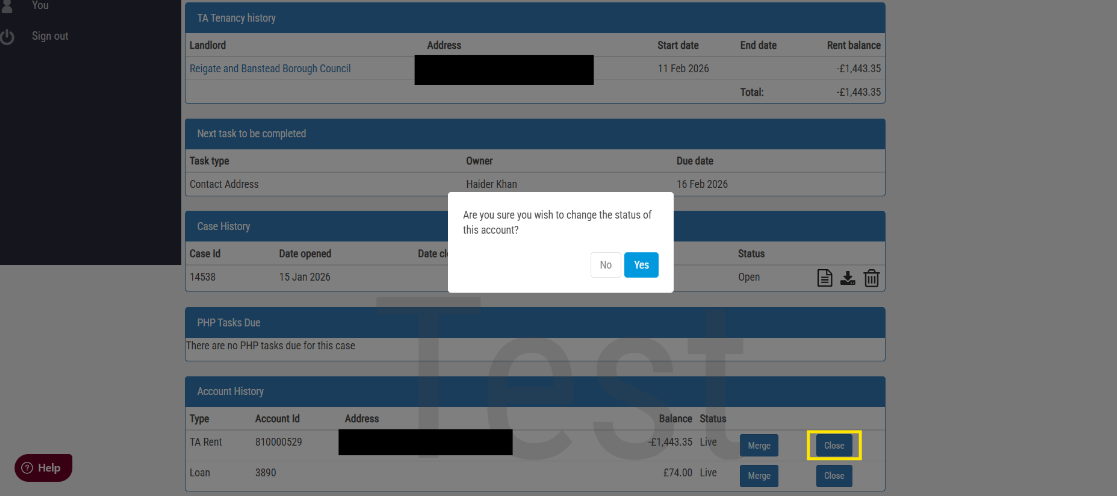
- When in a HPA2/Homelessness Case, ensure you are on the Details tab and then scroll to the bottom of the page to the Account History section. Here you will find all accounts for this customer including account type, ID, balance and status.
- Press the Close button next to the account you want to close.
- A pop up box will appear asking you confirm you want to change the status of the account. Press Yes to confirm or No to cancel.
Reopen a Closed Account
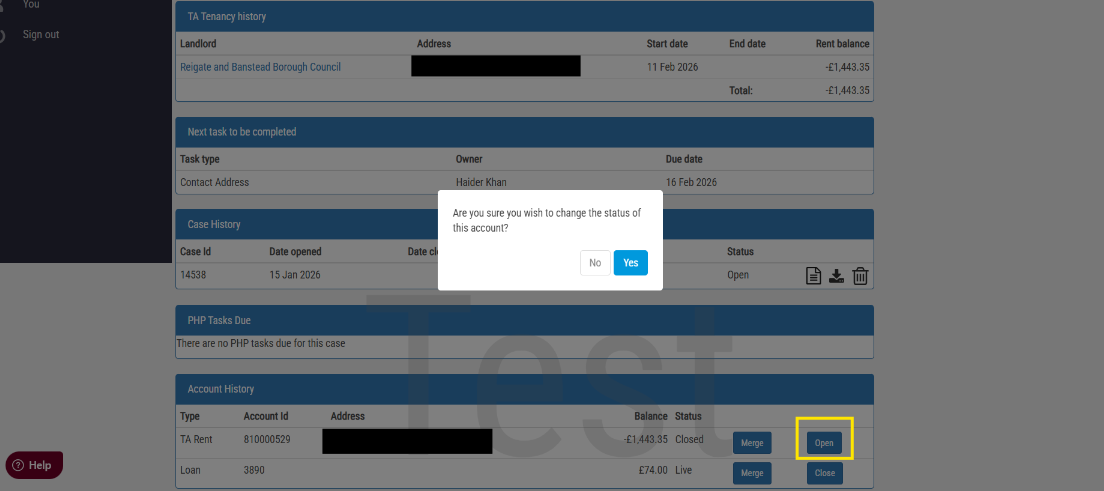
- When in a HPA2/Homelessness Case, ensure you are on the Details tab and then scroll to the bottom of the page to the Account History section. Here you will find all accounts for this customer including account type, ID, balance and status.
- Press the Open button next to the account you want to reopen.
- A pop up box will appear asking you confirm you want to change the status of the account. Press Yes to confirm or No to cancel.
Create a Loan Account
Loan accounts can be created on a HPA case. There does not need to be a live tenancy.
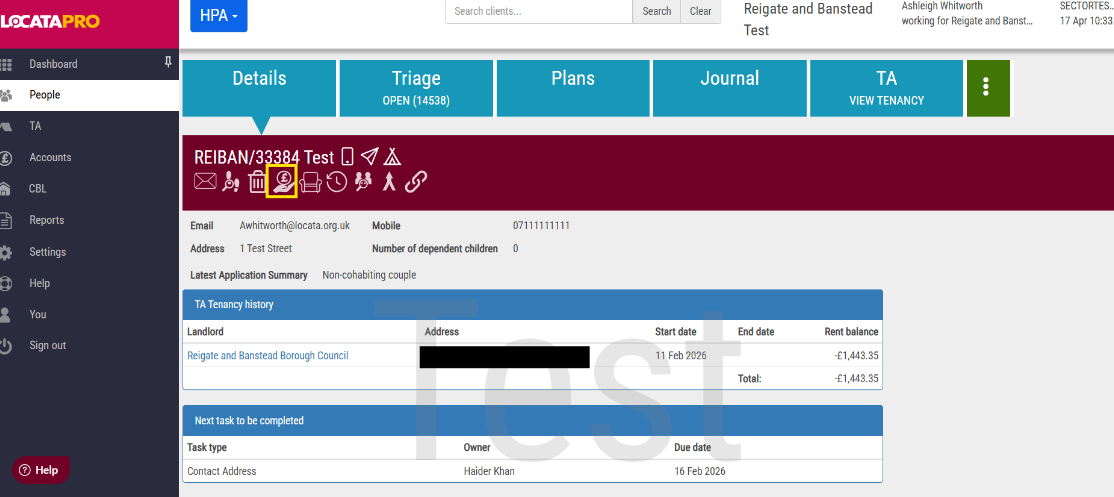
- From the HPA2 case Details tab, select the Add new loan icon.
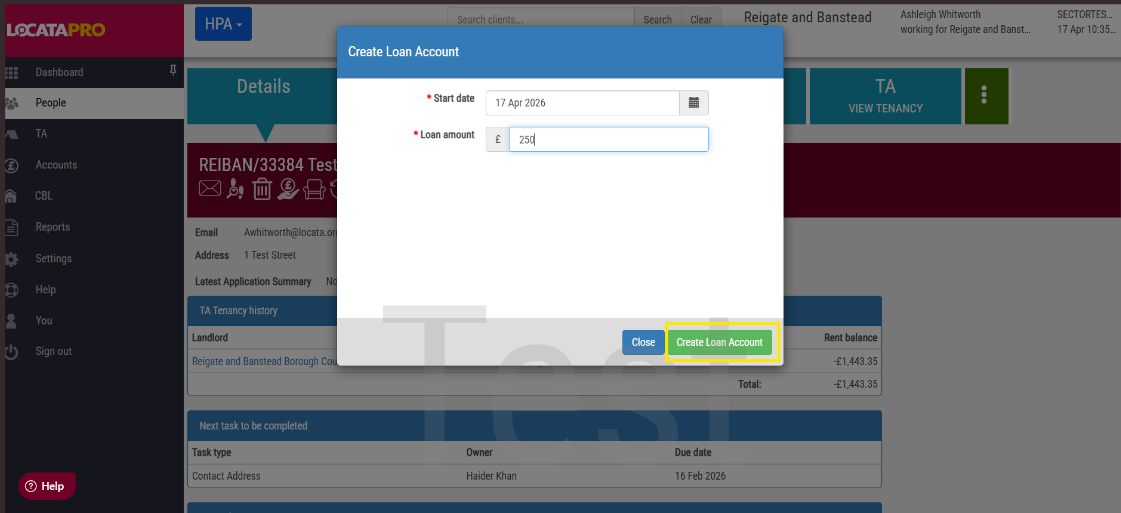
- Enter start date and loan amount and press Create Loan Account. This will take you to the new Loan Account.
Add Legal & Insolvency Account
Legal & Insolvency Accounts can be created on a HPA case.
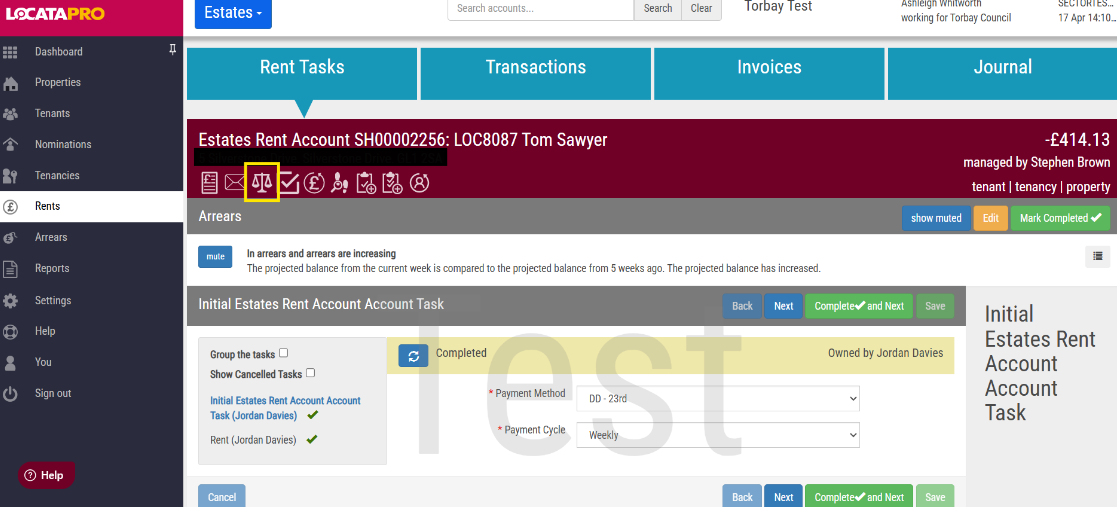
- From the HPA case Details tab or on an Estates rent account under the Rent Tasks tab, select the Add new legal or insolvency account icon.
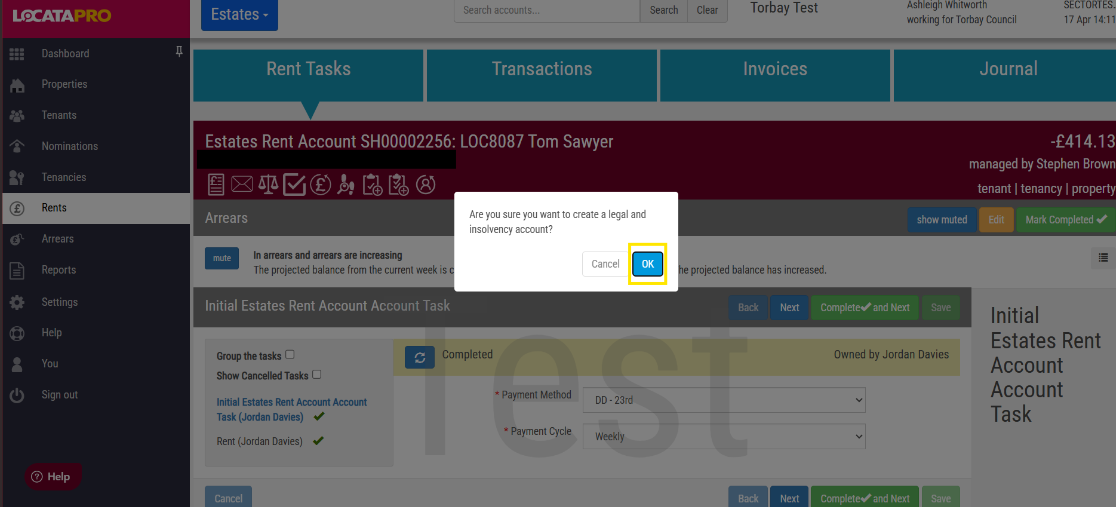
- A pop up box will appear asking you confirm. Press Ok to confirm. This will take you to the new Legal & Insolvency Account.
Note: The icon will only appear in HPA2 if you have the TARA bolt-on and you have Legal and Insolvency accounts.
Add Storage Account
Storage accounts can be created on a HPA case. There does not need to be a live tenancy.
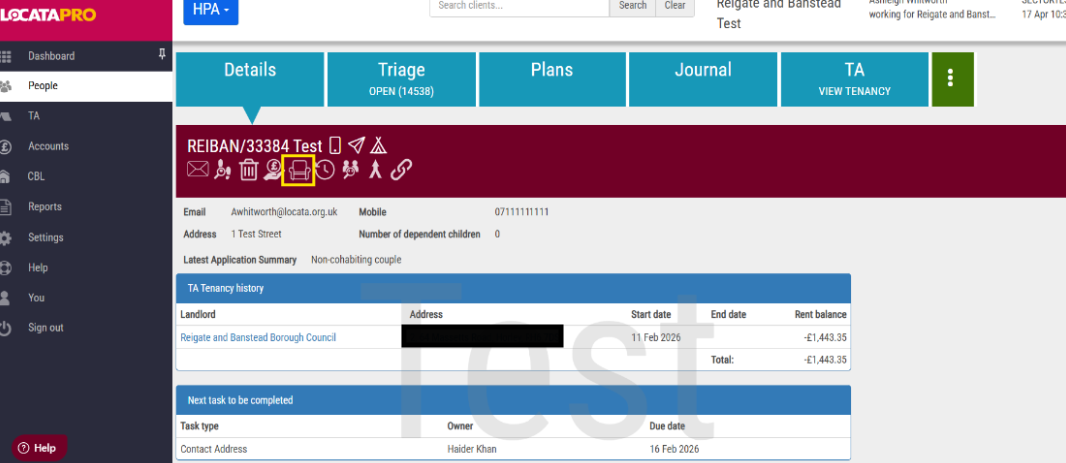
- From the HPA2 case Details tab, select the Add new storage account icon.
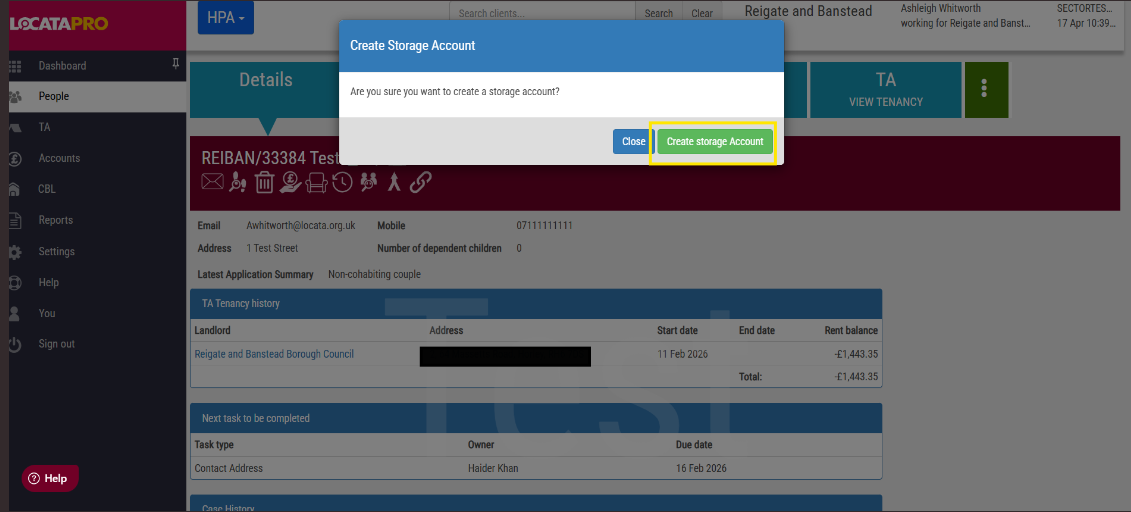
- A pop up box will appear asking you confirm. Press Create storage Account to confirm. This will take you to the new Storage Account.
Print Rent Account/Rent Statement
An account/statement can be printed for any account type (TA Rent, Storage, Loan etc).
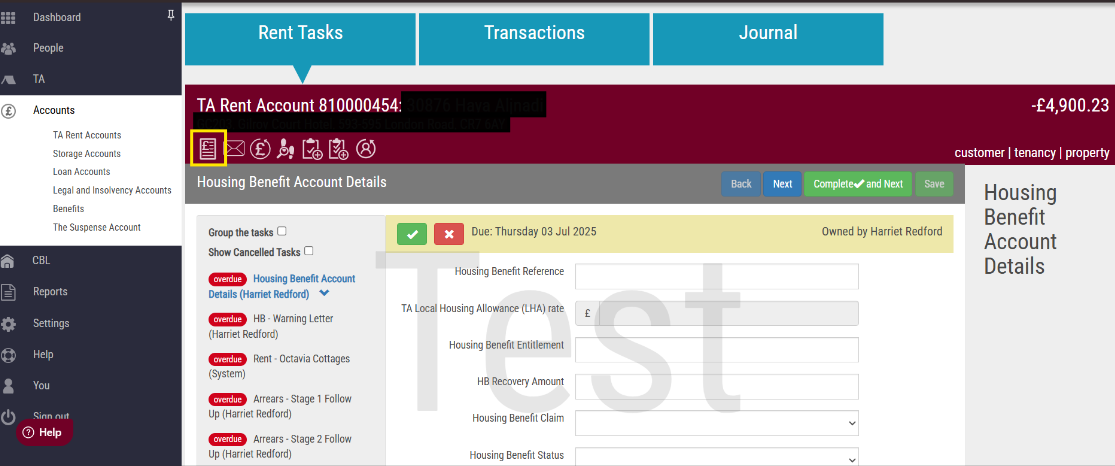
- Open the account. From the Rent Tasks tab, select the Print rent account icon.
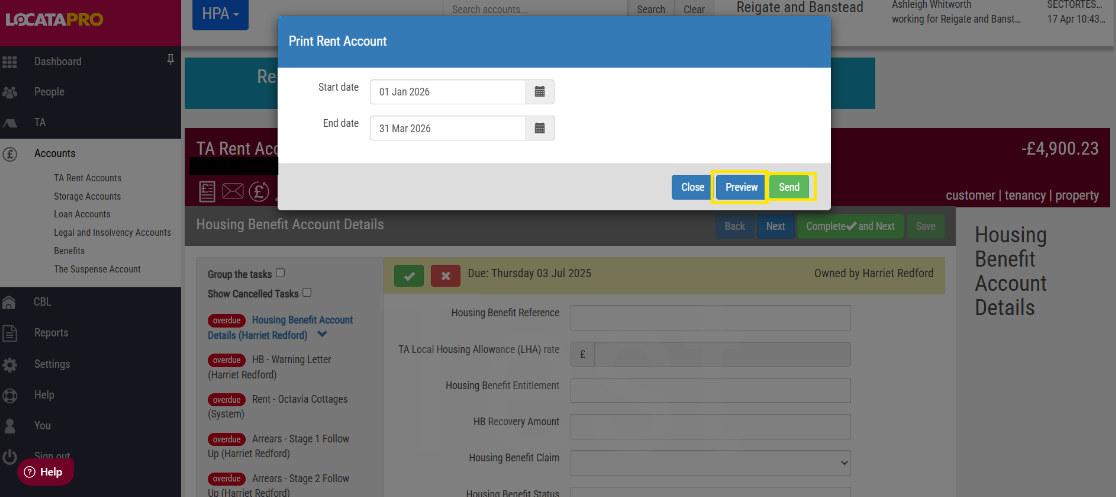
- A pop up box will appear asking you to enter start and end dates for the transactions. Enter the dates and press either
- Preview – this will open a PDF of the Account in a new tab on your web browser
- Send – this will email a copy to the customer providing a valid email address is recorded on their case
Transfer money between a customer's account
If a customer has more than one account (current rent account, former rent account, loan storage etc) money can be transferred from one to another.
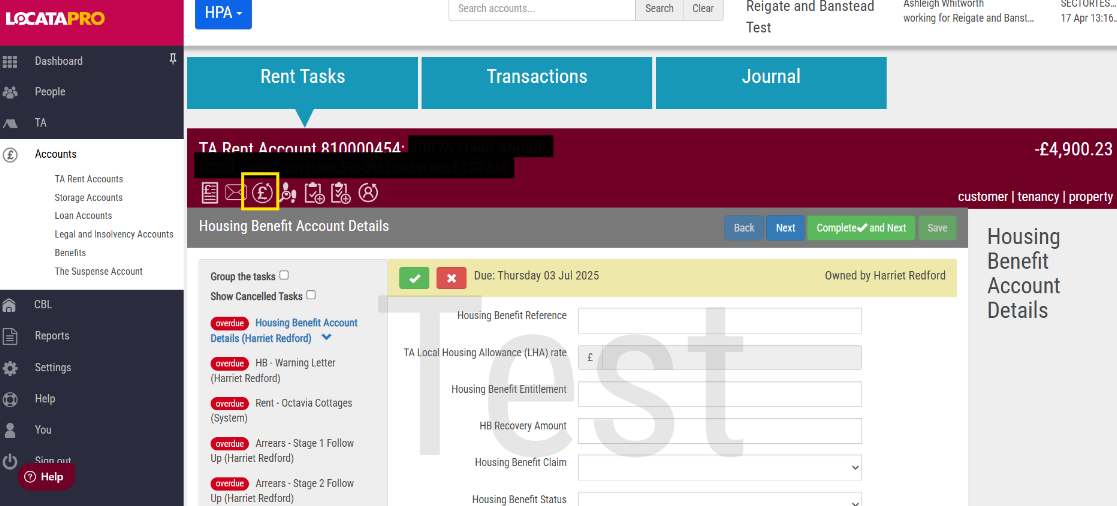
- Open the account that you want to transfer money from. From the Rent Tasks tab, select the Transfer money from this account icon. You will only be able to do this if the client has more than one account.
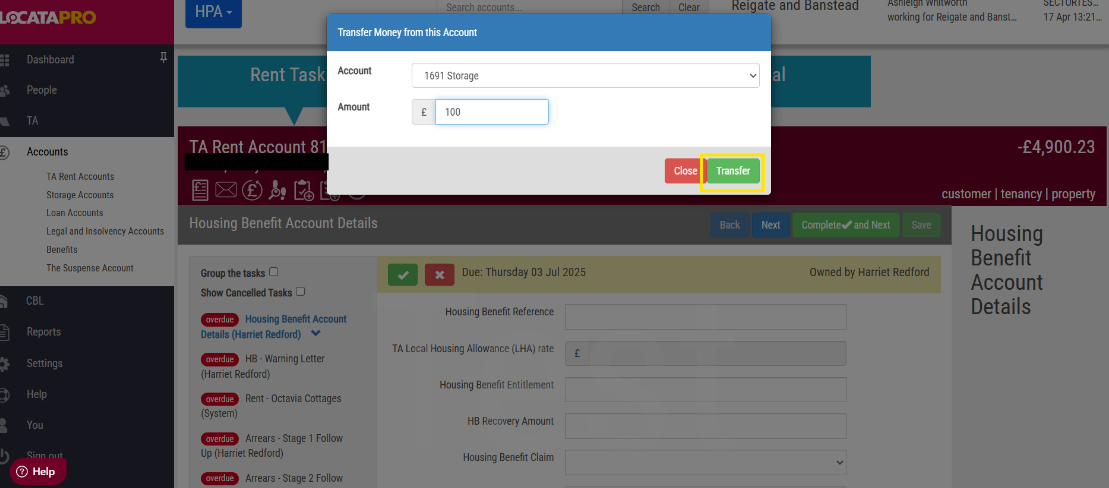
- A pop up box will appear asking you to complete the Account and Amount information
- Account - choose the Account the money should be sent to in the drop down box
- Amount – enter the amount to send then click Transfer
Go to the Transactions Tab
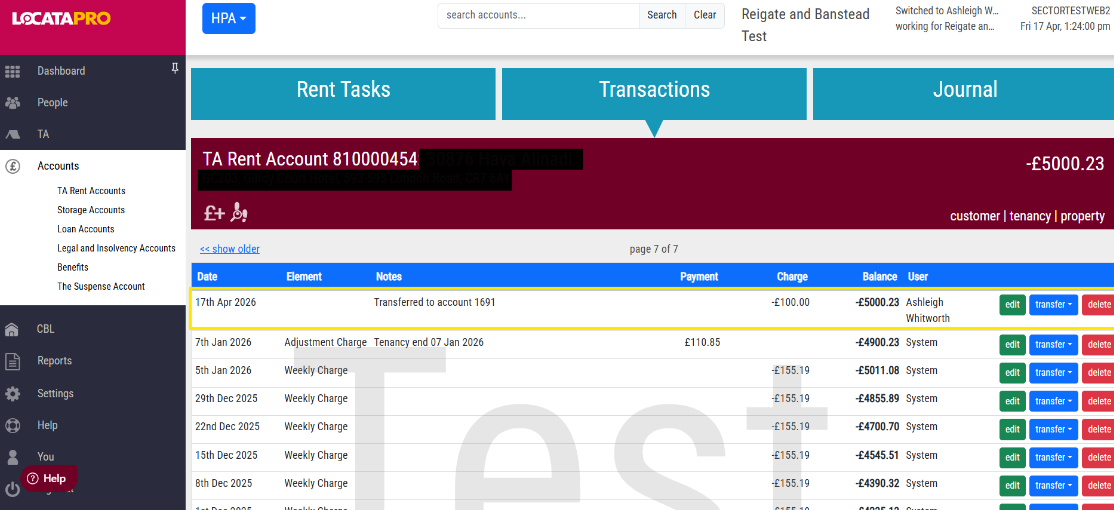
A new transaction will appear showing the money that has transferred. This transaction can be edited, transferred or deleted. For more information rent transactions, click here.
Transactions
Each account has a Transactions tab. The transactions that appear will vary depending on the Account Type and also how you have configured TARA. Transactions may include automated charges such as Rent and Service Charges. If you have integrations set up you may see Housing Benefit or customer payments. Transactions can be edited, transferred or deleted.
Editing Transactions
- Go to the Transactions tab.
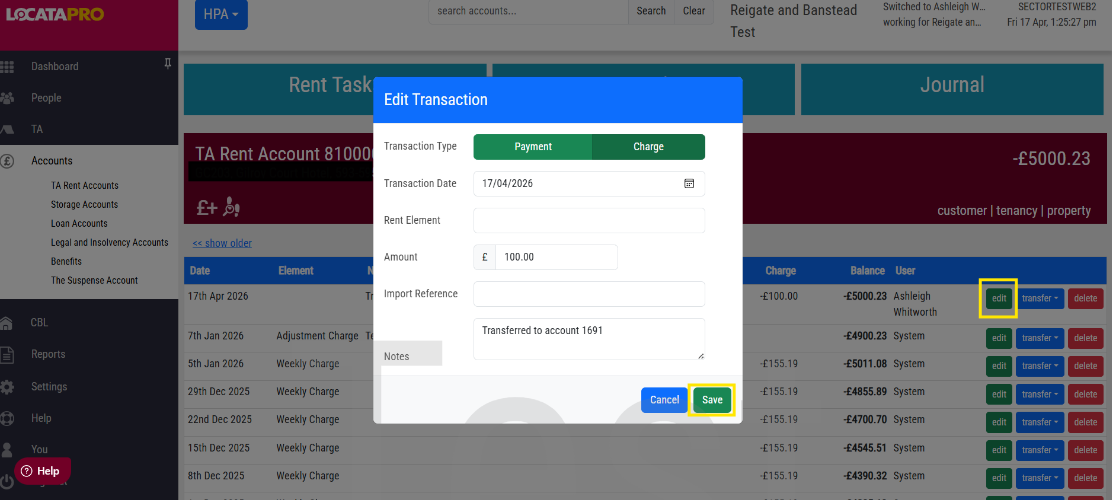
- Find the transaction you want to edit. Press Edit.
- A pop up box will appear with the original details of the transaction. Edit it and press Save. Press Cancel to cancel your edits.
Transfer Transactions
- Go to the Transactions tab.
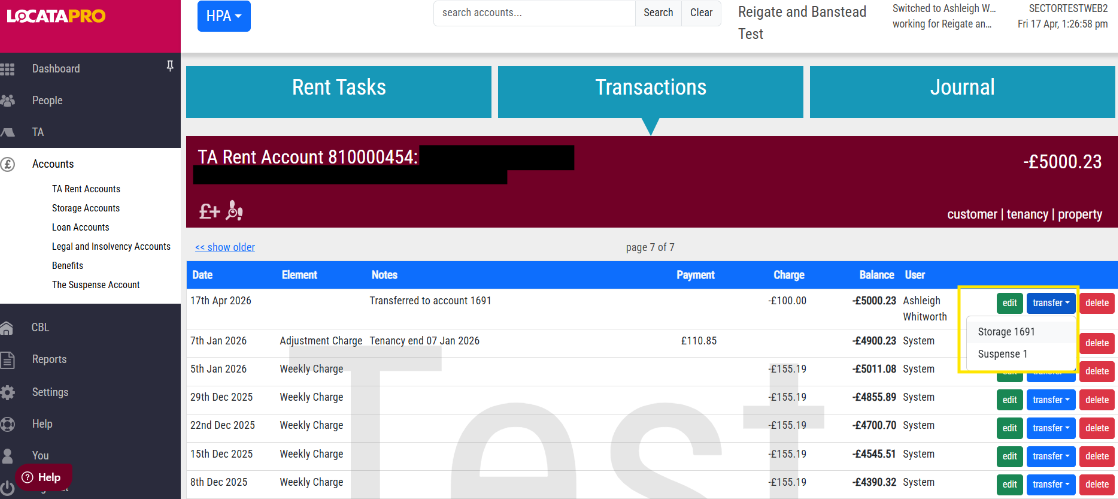
- Find the transaction you want to transfer. Press Transfer.
- A drop down box will appear with accounts that the payment can be transferred to. Select the account.
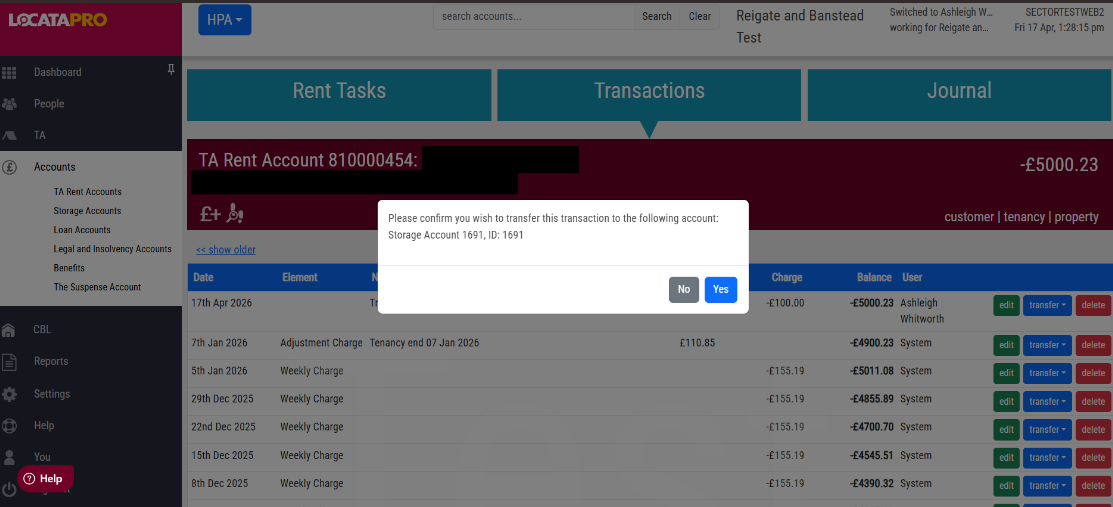
- A pop up box will appear asking you to confirm the transfer. Press Yes to transfer or No to cancel.
Delete a Transaction
- Go the Transactions tab.
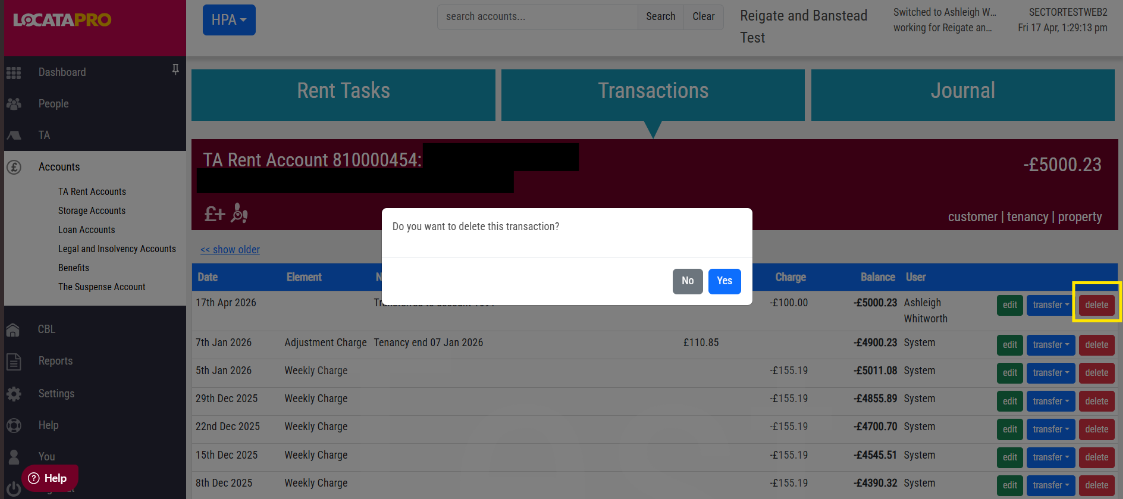
- Find the transaction you want to delete. Press Delete.
- A pop up box will appear asking you to confirm that you want to delete the transaction. Press Yes to transfer or No to cancel.
Arrears Aware
Arrears aware is included in our TARA bolt-on and Estates module.
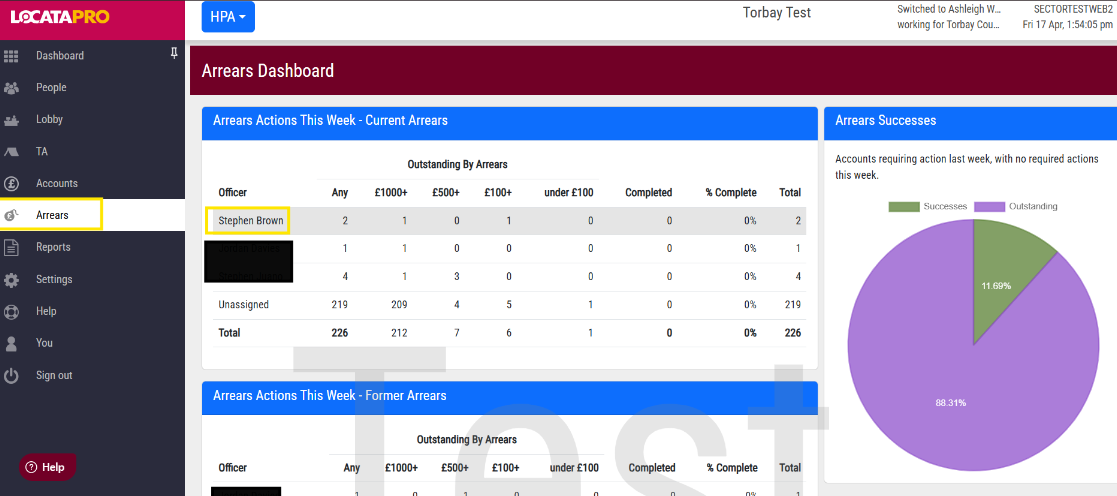
- Select Arrears from the left hand menu. There are two separate widgets, one for current arrears and one for former arrears.
- Select an officer's name from within one of the widgets. This will open up a new widget further down the page called Arrears Actions, scroll down the page to view this widget. This will show you all the arrears managed by the officer and a reason for why this customer is appearing on the arrears dashboard. This may include reasons such as ‘Arrears over £500’ or ‘In arrears and arrears are increasing’.
- Each column can be sorted by pressing the arrow next to each column name.
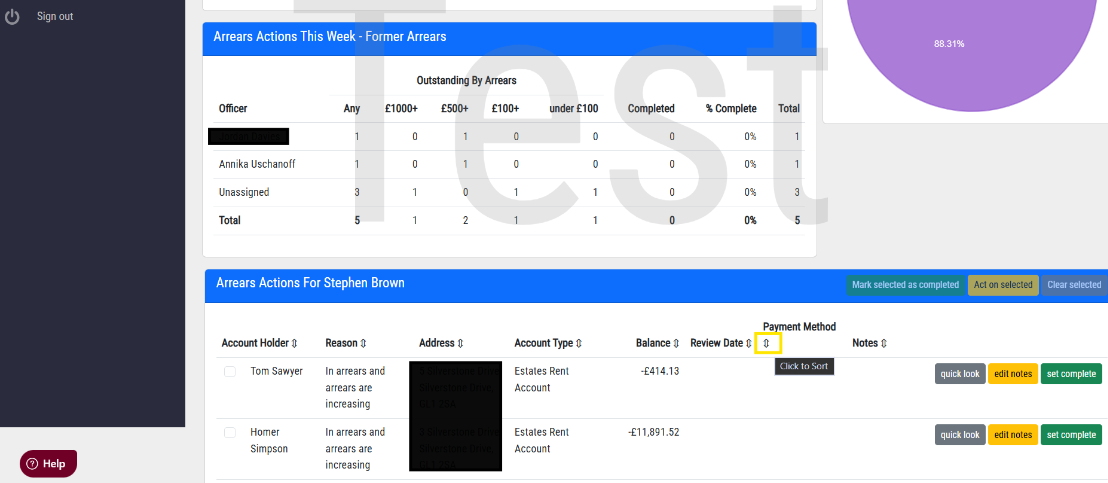
- Click anywhere along the row to go to that customers account.
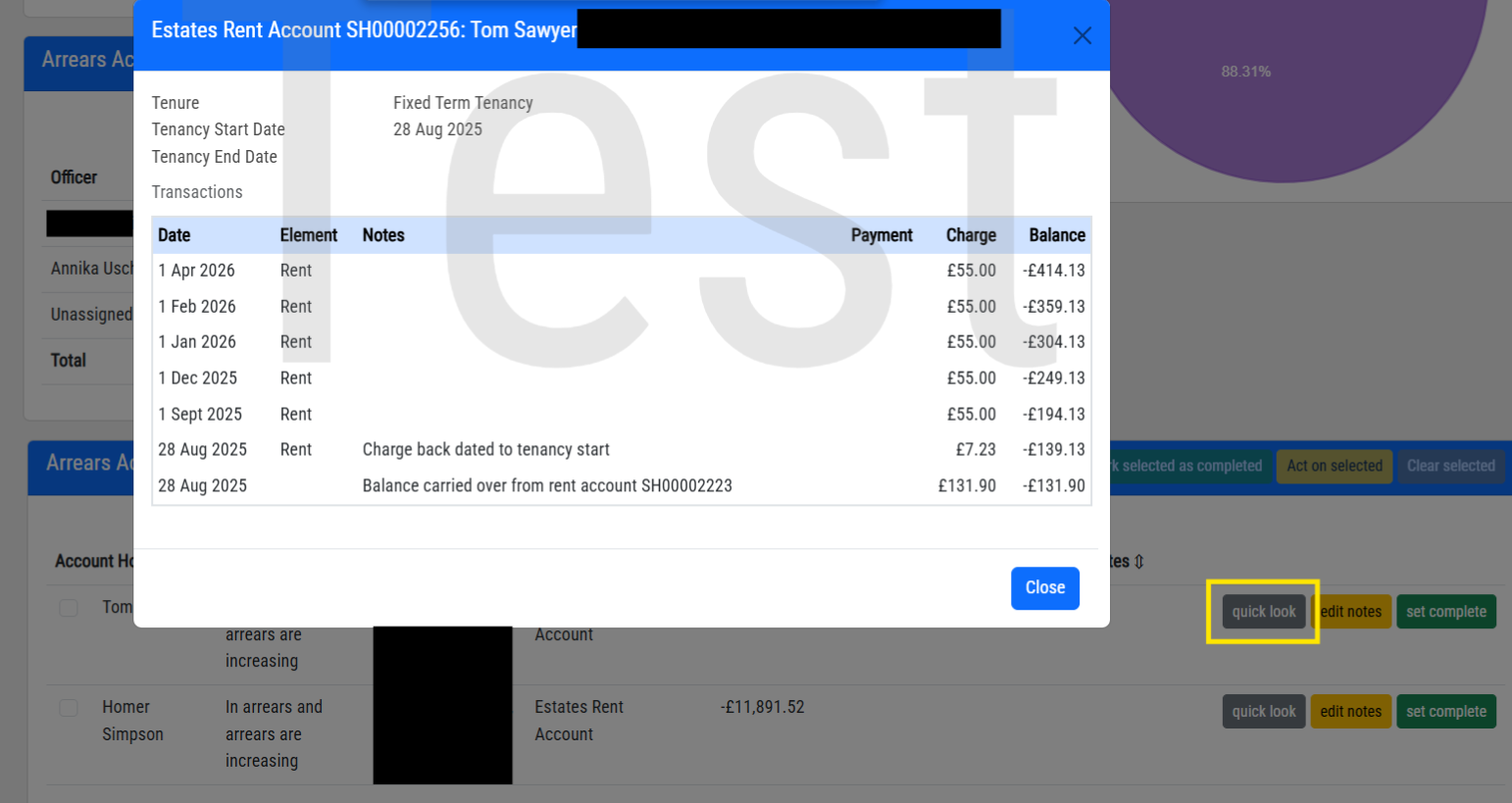
The Quick look button will allow you to view recent transactions in a pop up box.
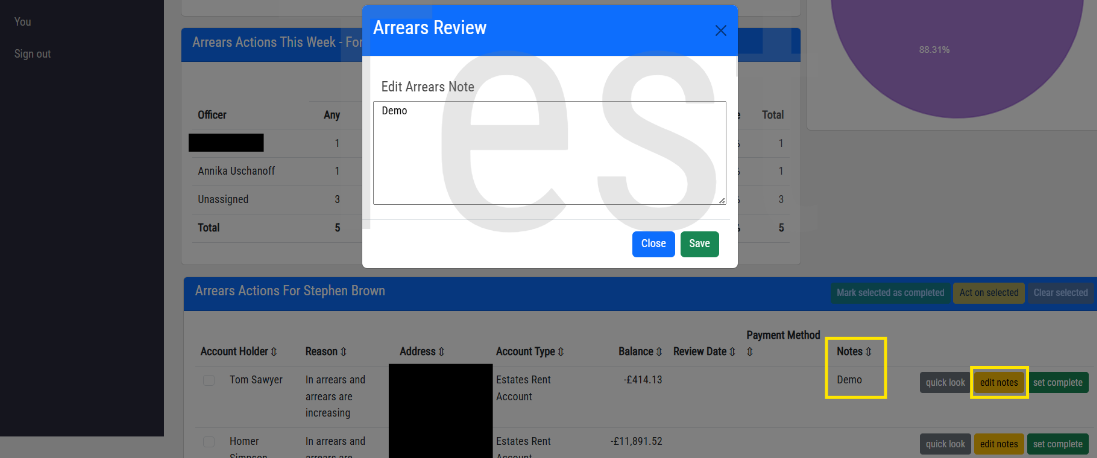
The Edit notes button will allow you to add and edit notes that will appear in the Notes column.
The Set complete will show that no further action is required on that account at this time.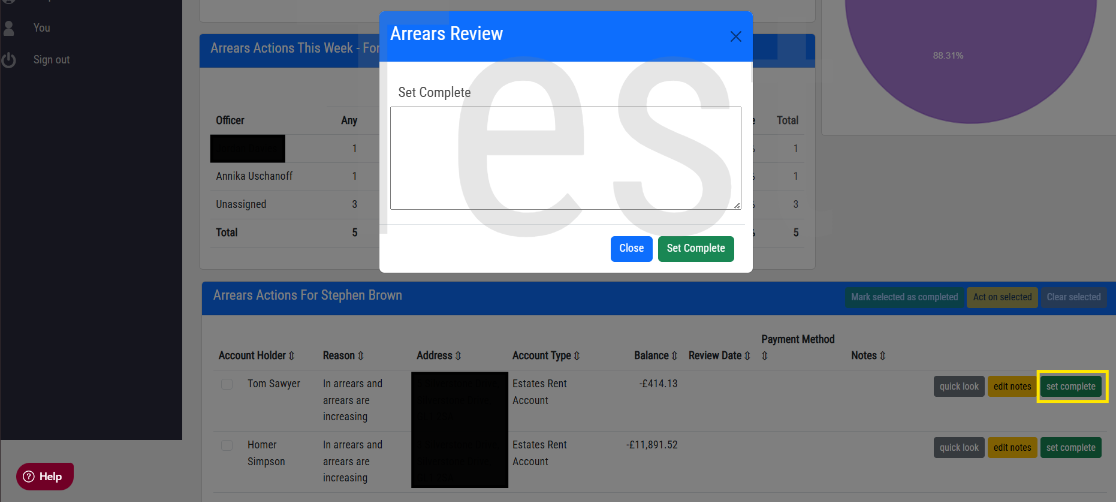
The Act on selected button will allow you to add the same note to multiple clients. Select the tick box to left of the customers name and select the Act on selected button.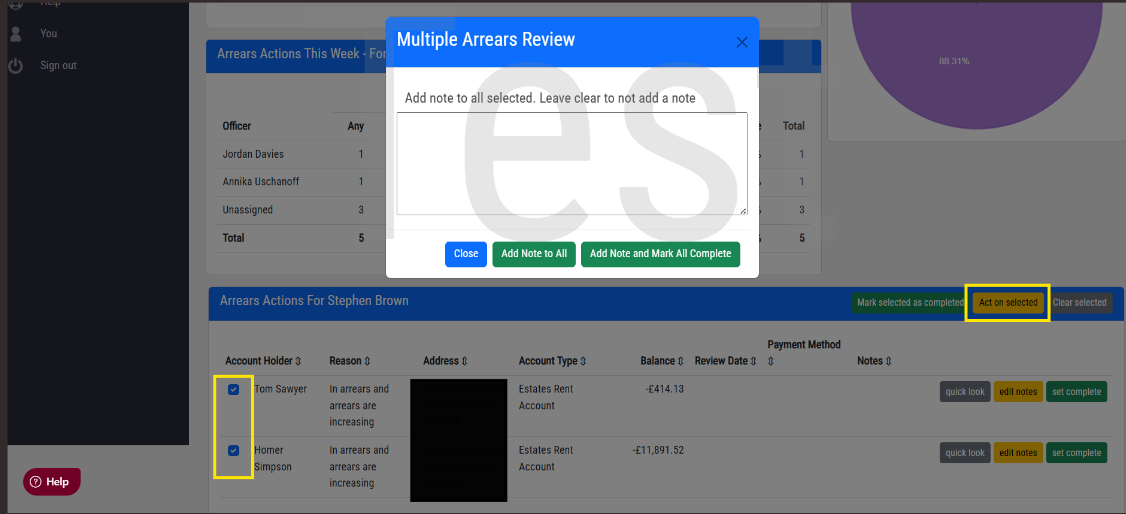
The Mark selected as completed button allows you to complete multiple arrears actions in one go. Select the tick box to left of the customers name and select the Mark selected as completed button.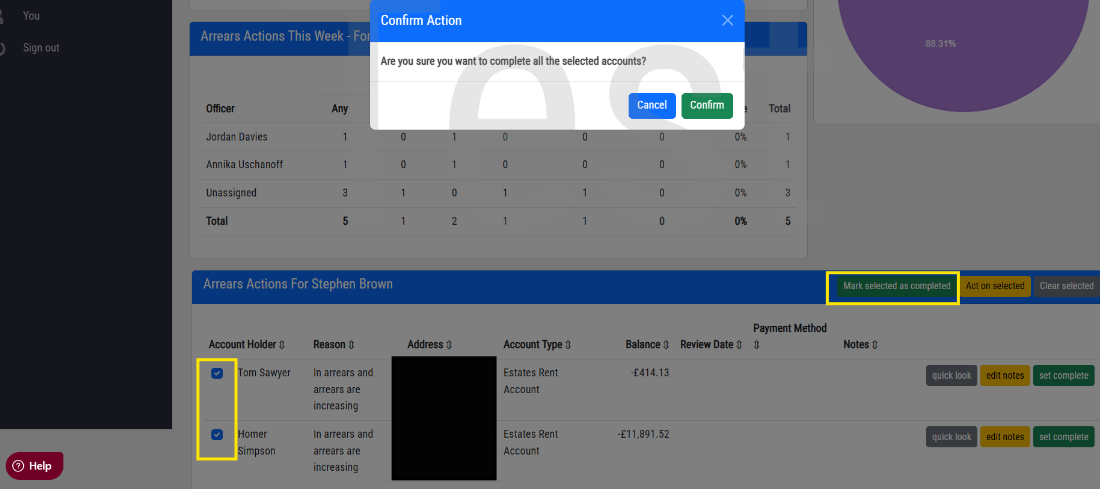
Was this article helpful?
That’s Great!
Thank you for your feedback
Sorry! We couldn't be helpful
Thank you for your feedback
Feedback sent
We appreciate your effort and will try to fix the article