This article will explain how to create a Housing Standards case and how to add, complete and manage Housing Health and Safety Rating System Assessments on our Private Sector Housing (PSH) module.
TABLE OF CONTENTS
- Adding a Housing Standards Case
- Adding a Housing Health and Safety Rating System Assessment
- Once the assessment is completed
Adding a Housing Standards Case
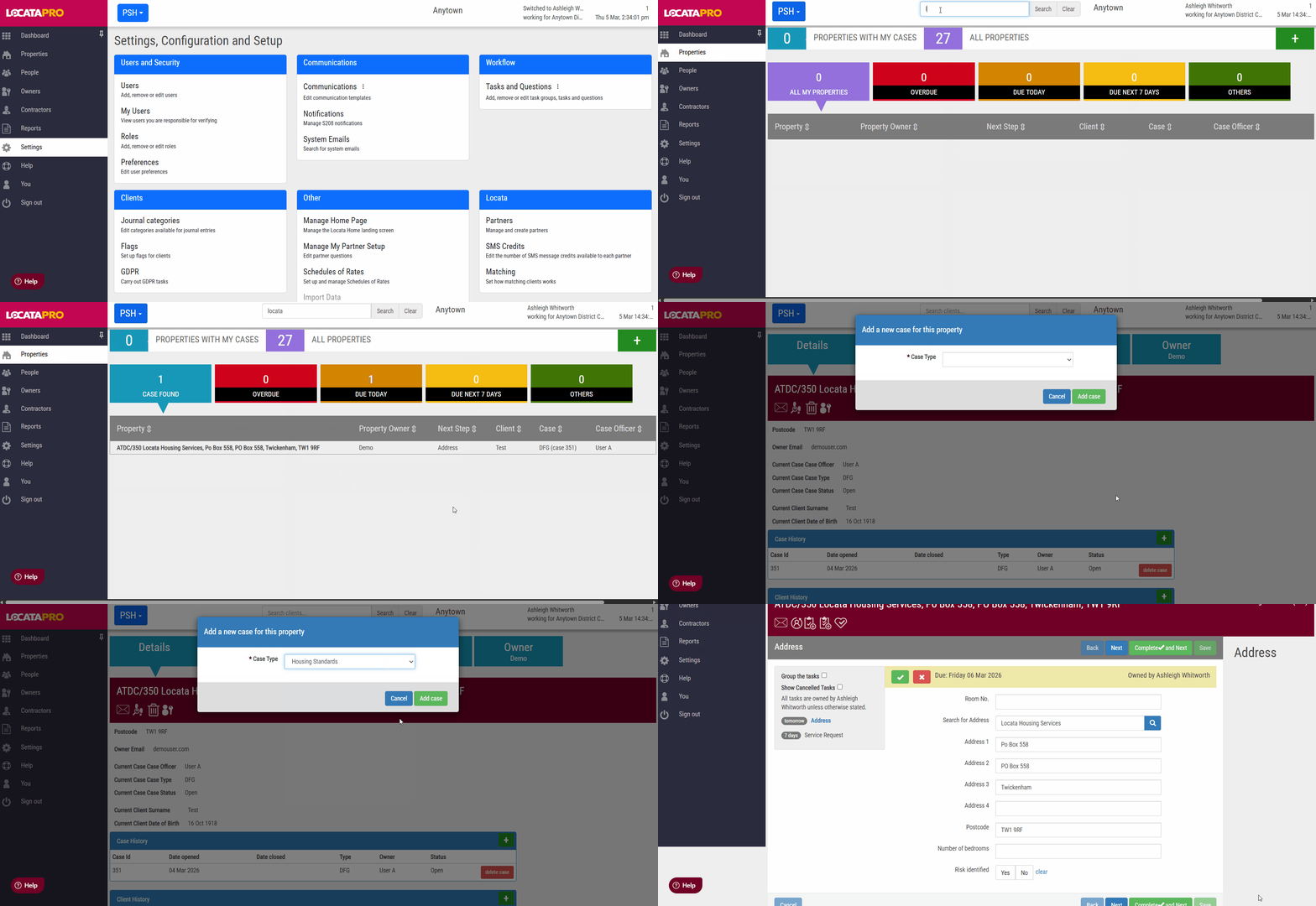
To set up a Housing Standards case:
- Go to Properties.
- Select the property you want to use or create a new one if it doesn't exist by clicking the green + button.
- Under the Details tab, click the green + button in the Case History box.
- Select Housing Standards from the Case Type dropdown.
- Click Add case.
Adding a Housing Health and Safety Rating System (HHSRS) Assessment
- Complete the workflow up to the Housing Health and Safety Rating System (HHSRS) task.
- To create the assessment for the inspection, click the add new HHSRS assessment button.
- Enter the details and click Create Assessment.
- Add the options you would like to include on the assessment from the right side box by clicking + add next to each item.
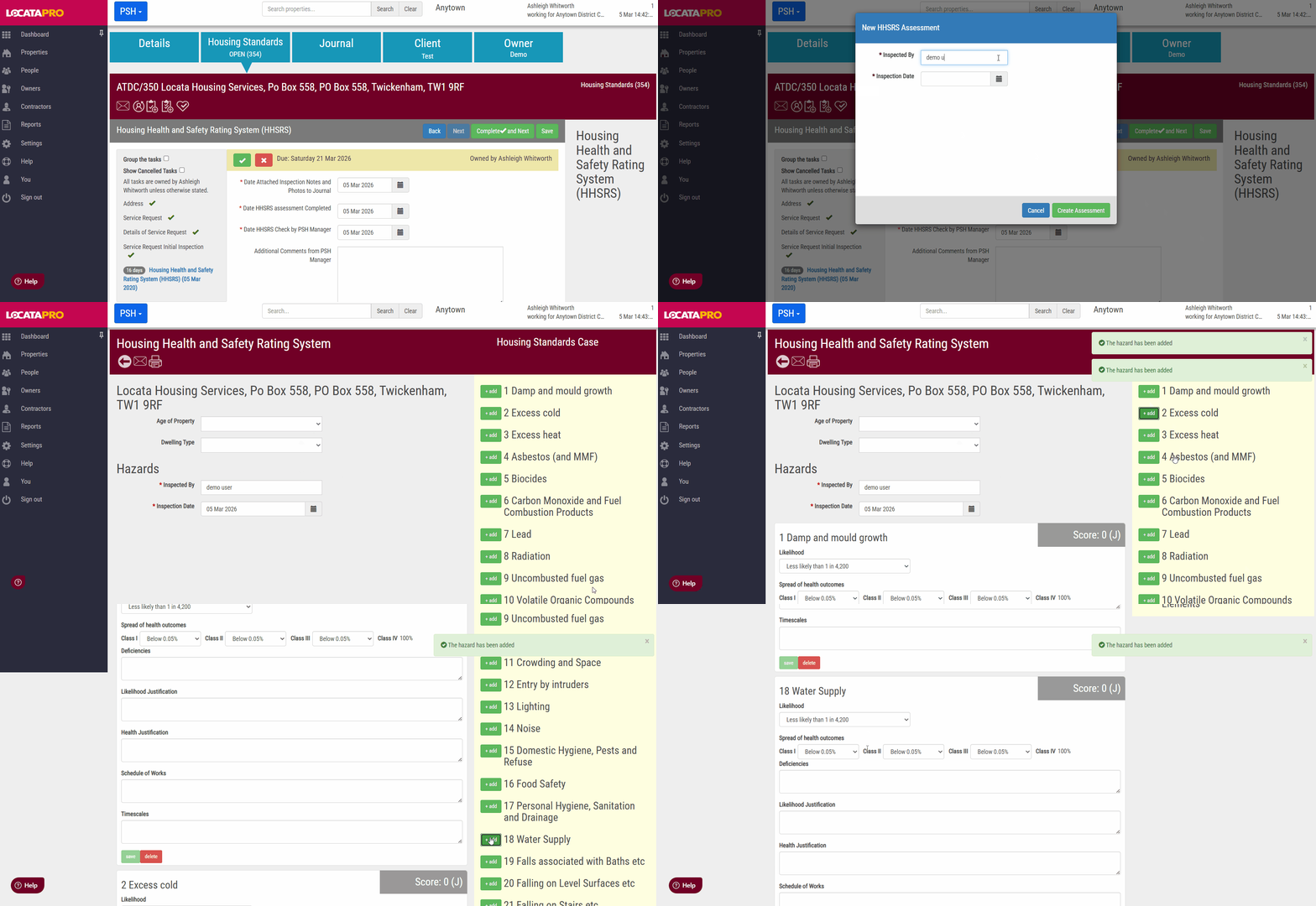
Info: If the age of property and dwelling type has been previously recorded for the property then these will be pre-populated.
Note: If you click on the hazard name this will expand to display an extract of the government guidance and scoring matrix used when assessing each hazard.
Completing the assessment
- Use the scoring matrix and guidance on the right hand side for each hazard and complete each of the following:
- Likelihood
- Spread of health outcomes
- Deficiencies
- Likelihood justification
- Health justification
- Schedule of works
- Timescales
- Once completed click Save.
- To print the assessment, click the Print icon.
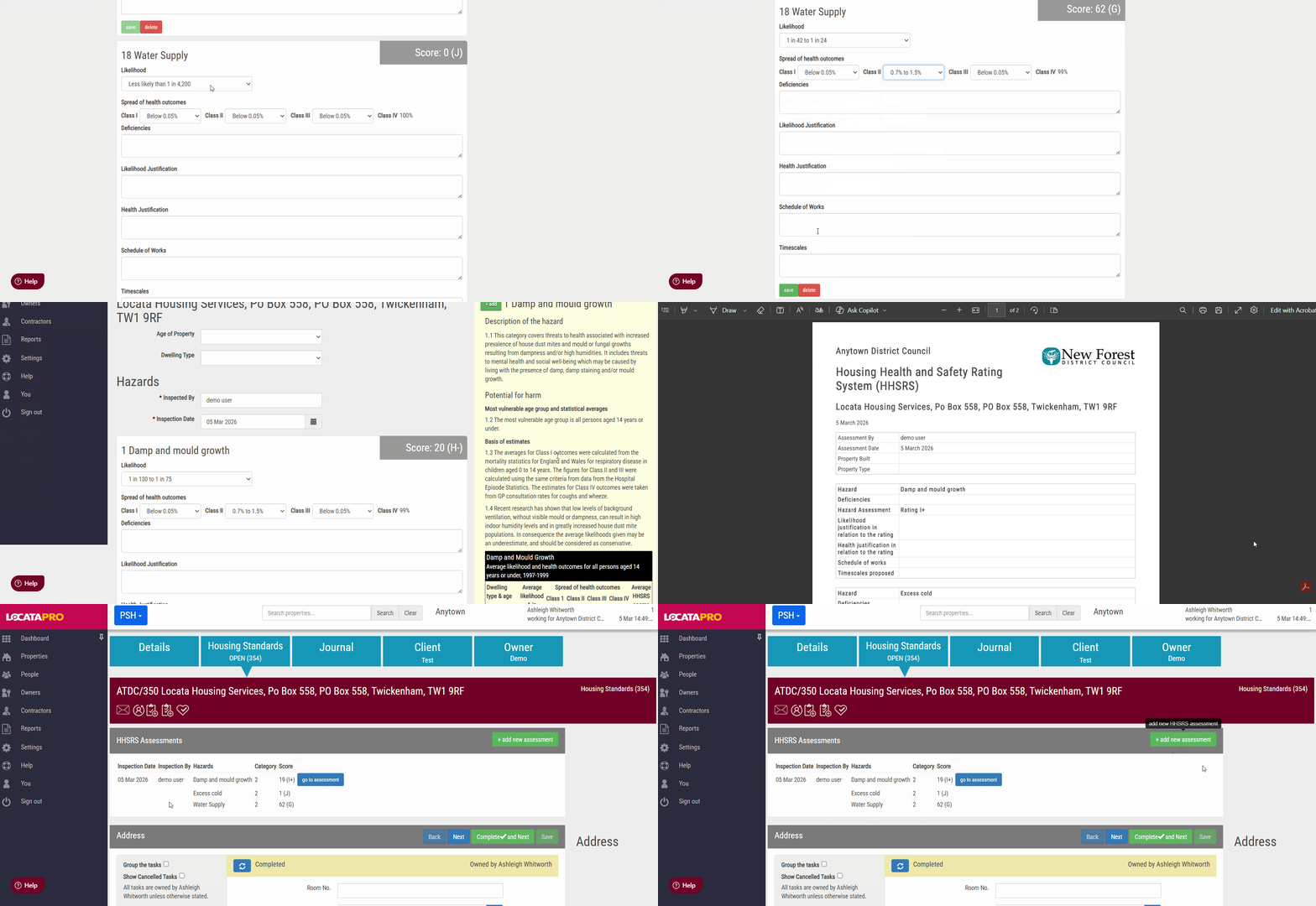
Info: The score for each hazard will update based on the values selected in likelihood and Spread of health outcomes.

You can add multiple assessments by clicking the green + add new assessment button.
Note: When you click on the print icon anything displayed in the assessment will be included in the printed version.
Was this article helpful?
That’s Great!
Thank you for your feedback
Sorry! We couldn't be helpful
Thank you for your feedback
Feedback sent
We appreciate your effort and will try to fix the article