If you're experiencing a technical issue with the system, there are two ways to report it. This article explains how to raise a support ticket either from within the system or via the support site.
TABLE OF CONTENTS
- Reporting from Within LocataPro
- Legacy CBL Users
- Logging in to the Support Site
- Submitting a ticket via the Support Site
- Monitoring a ticket
Note: Always check the help centre articles first—your issue may already have a solution. If you believe the problem is technical in nature, please report it to us using one of the methods below.
Reporting from Within LocataPro
Use this method if you're using a LocataPro module and have access to the system.
- In the left-hand menu of your LocataPro module, click Help.
- Select Report a problem.
- Fill in the required fields:
What is your problem? – A short summary
Description – Provide full details of the issue
Optionally tick the box to receive a copy by email
Click Send Issue to submit the ticket.

Did you know: Including a detailed description helps us diagnose and resolve issues more quickly.
Legacy CBL Users
If you're using the legacy CBL system, the Help button will direct you to our Freshdesk help centre, where you can browse existing support articles.
Note: To report a technical issue from the legacy CBL system, you must use the support site, as ticket submission is not available within the system.
Logging in to the Support Site
We have added Two Factor Authentication (2FA) to improve the security of the site. If you don’t have an account, contact Locata at adminsupport@locata.org.uk and they will set one up for you. However, each local authority is limited to a small number of support accounts, so if you don’t have one, please ask your nominated colleague to raise the issue on your behalf first.
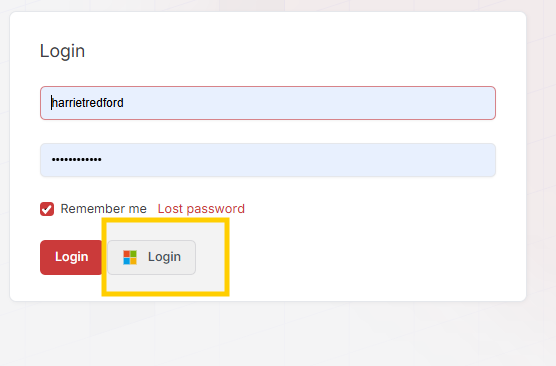
Log in via Microsoft Entra ID:
- Click the Microsoft Login button.
- The first user from your organisation who signs in this way will be prompted to grant permissions to authorise our application and will need the relevant permissions to do so (this will usually be your IT team).
- Once approved, you will be logged into the support site and other users from your organisation will be able to log in normally using Single Sign On (SSO).
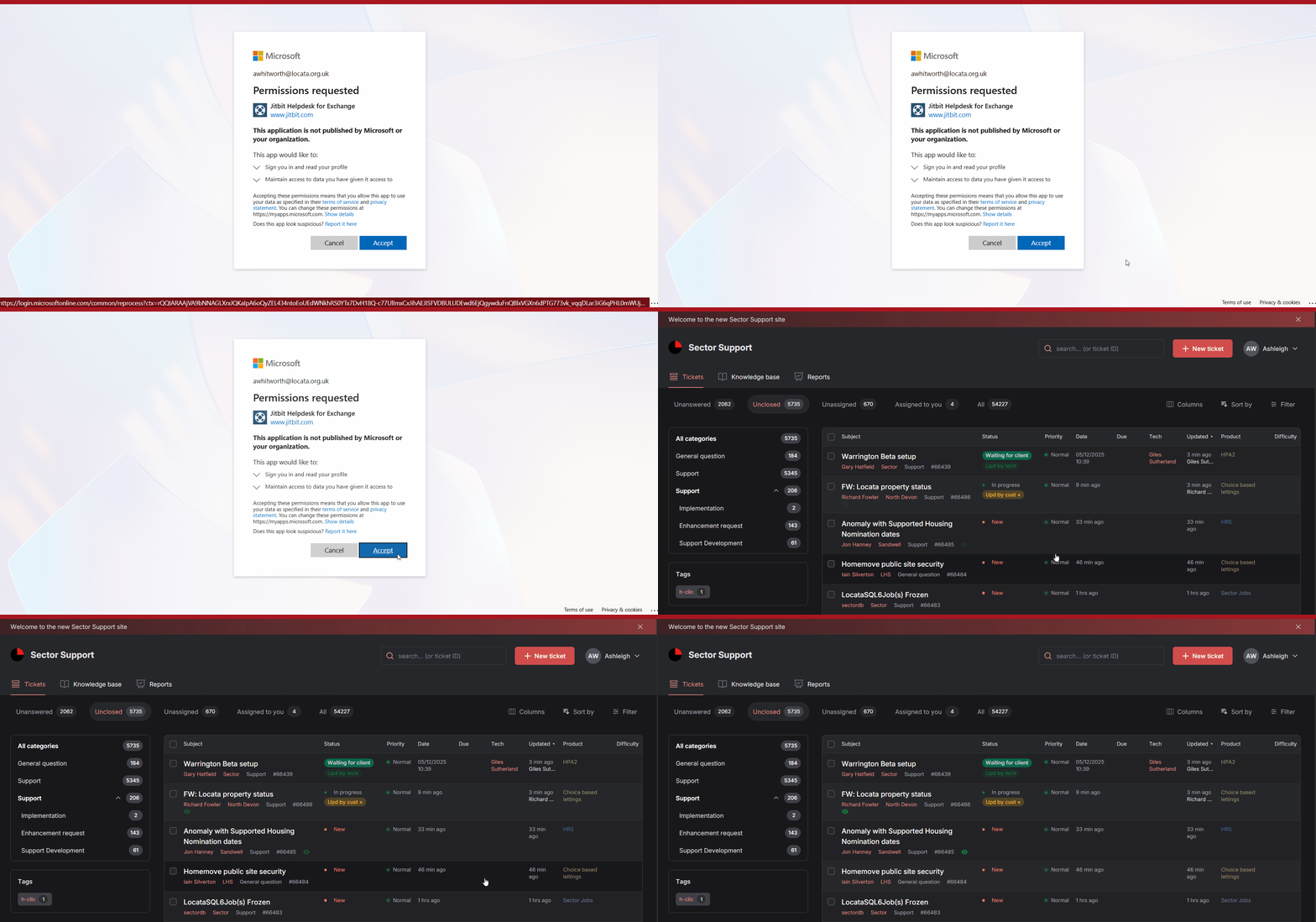
Note: This way of logging in is the same Single Sign On (SSO) method as the Locata Pro back office.
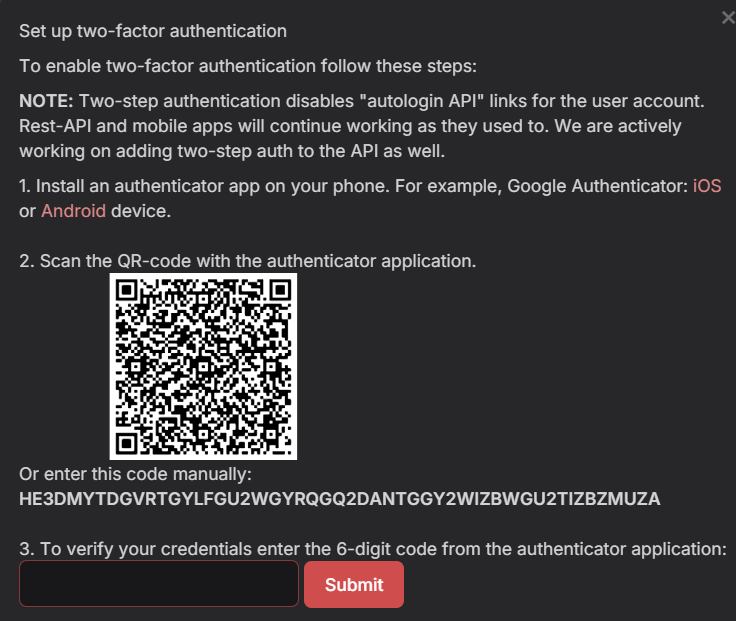
Login using Two Factor Authentication (2FA):
- Click the red Login button.
- A pop up box will show the steps to take to login via this method.
- Click Submit at the end and you'll be logged in.
Submitting a ticket via the Support Site
Use this method if you have a support site account or are submitting on behalf of a colleague.
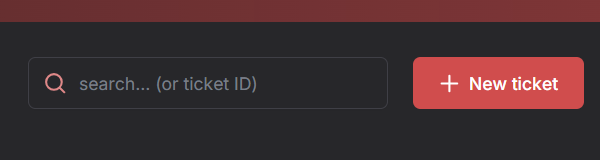
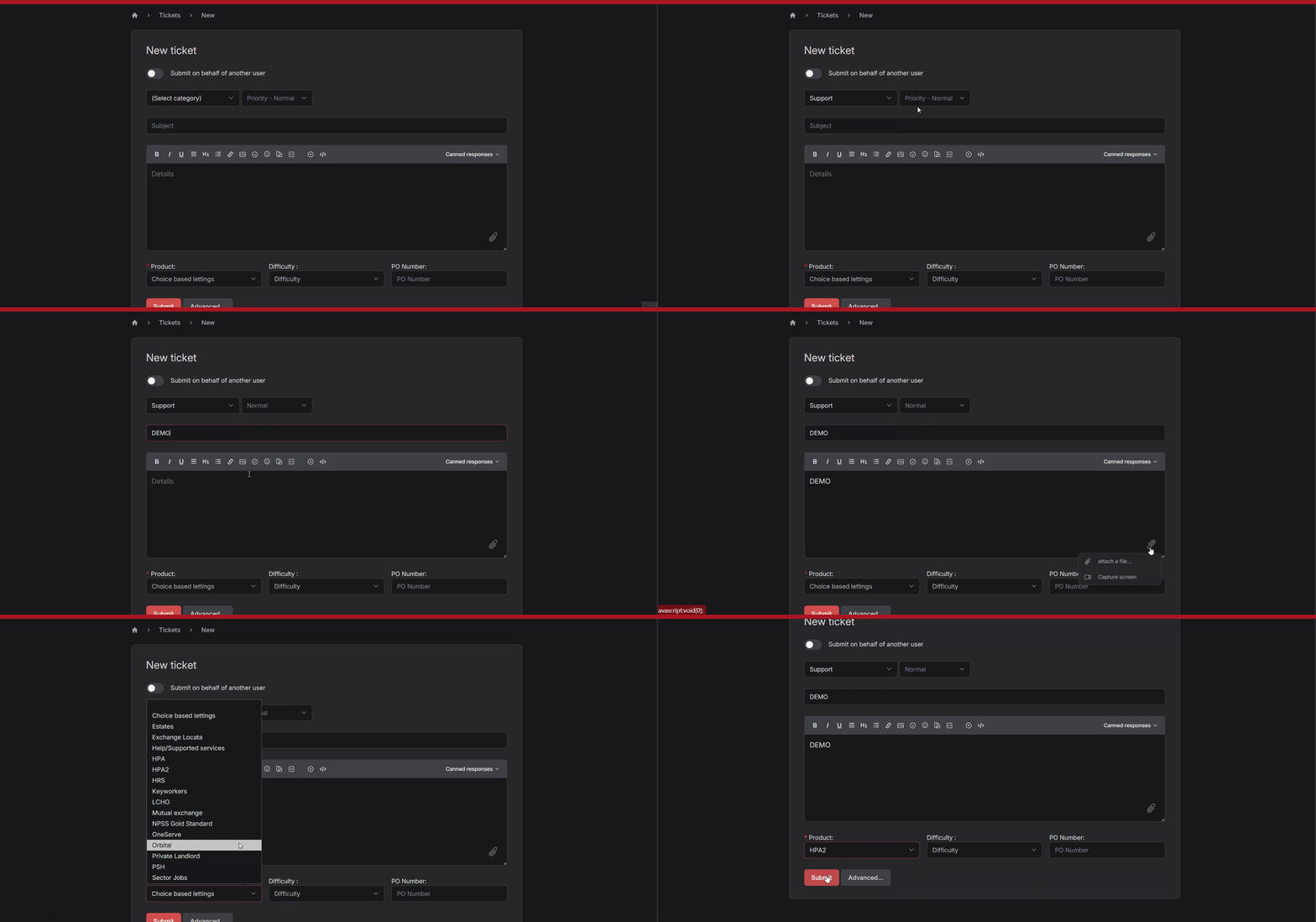
- Click New Ticket.
- Fill in all required fields:
Category: Usually Support
Priority: Choose appropriately:
Critical System is unavailable. High Critical functionality is unavailable. Medium Non-critical functionality is unavailable. Low Minor errors and cosmetic issues. Subject: A brief summary of the issue
Description: Help us help you - include every detail below so we can fix it on the first pass.
Issue Summary Description of the problem. Include any error codes or messages (copy/paste). Reproduction Steps Numbered list of exactly what you did, in order. If it only happens sometimes, say “Occurs 3/5 times".
Environment Browser & version (e.g. Chrome 115.0). OS & version (e.g. Windows 10). Device type (desktop/laptop/tablet/mobile).
URL/Screenshots Full URL (copy-and-paste from address bar). Screenshot(s) showing the URL bar and the problem.
Troubleshooting Cache/cookies cleared? Yes/No.
Tried in another browser or Incognito? Yes/No.
Any recent changes on your end? (e.g. “Just updated to macOS 14.1.”).
Affected System Choose the product/module from the dropdown.
Attach documents or screenshots using the Attach file link, or copy and paste screenshots.
Click Submit to log your ticket.
Did you know: Submitting separate tickets for separate problems helps the support team track and resolve each issue more effectively.
Did you know: The support site is called Sector Support as it is where our technical team manage and respond to tickets.
Monitoring a ticket
- Once you have submitted a ticket, the status will be marked as New.
- We will acknowledge receipt and send an email with a link to your ticket. You will be able to access the ticket through this link at all times.
- Once a technician responds, the ticket status will change to Updated by Technician.
- If you reply to their message, it will show as Updated by Customer.

Was this article helpful?
That’s Great!
Thank you for your feedback
Sorry! We couldn't be helpful
Thank you for your feedback
Feedback sent
We appreciate your effort and will try to fix the article